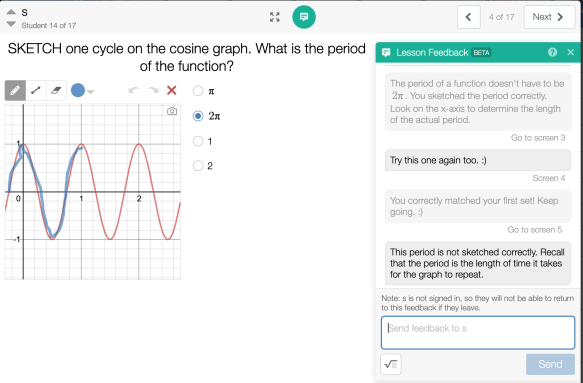
Desmos JUST released a new feature that give teachers the ability to give feedback to students INSIDE Desmos activity builder! This will be such a helpful feature now that we cannot interact with our students in person, and especially for classes that are only able to do asynchronous distance learning.
Please note:
** Your students MUST be signed in to the activity, with either with a Google or Desmos account, to be able to go BACK into an activity and read the feedback. **
Yes! It works on previous activities! Just today I went into our last activity and added some feedback for students to look at on our first day back. I figured it would be a great way to review, and ease into distance learning.
The feedback is very easy for students to access, as it puts all of the feedback you give them in one place, and they can click to go directly to the screen.
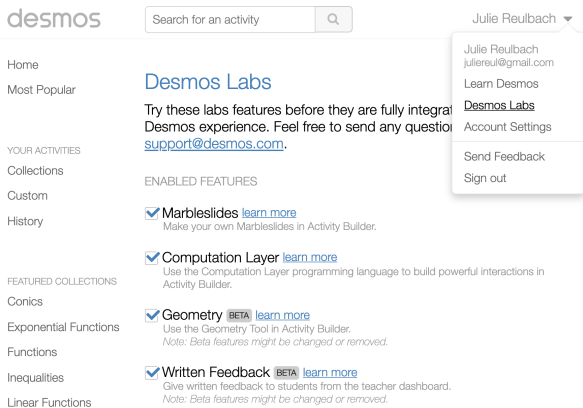
1. You have to TURN on the feedback option in Desmos Labs. Click on your name in the top right corner > Desmos Labs. Then check all the Labs you would like to have.
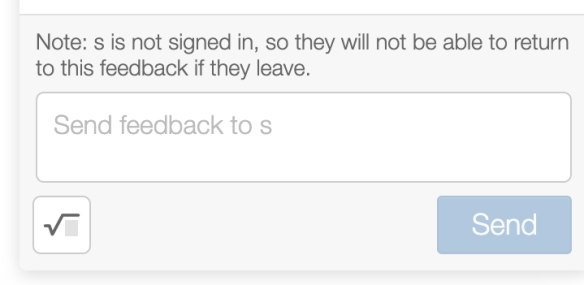
2. Once in an activity, click the text box at the top of the screen to leave feedback.
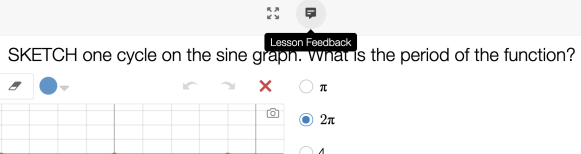
3. ALL of the feedback is in one convenient place for your students. And they can just click on the “Go to screen 3” to look at the screen or edit their work.
I am planning on putting a Feedback screen at the end of each activity where students can ask questions once they finish an activity. I am so excited to be able to answer my students questions, right in the activity!
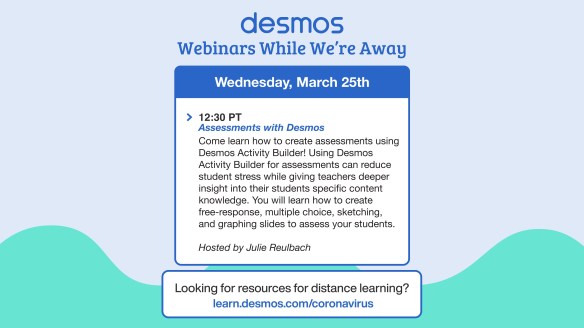
I will talk about test integrity, grading, giving feedback, and how to create self-checking slides with computation layer. How to give feedback inside Desmos (NEW FEATURE!!) will be covered as well.
The session document is located here and webinar will be recorded if you aren’t able to attend. Note: It usually takes about a week to process and publish the recording.
I’m still on “Spring Break”, and we do not start online learning at my school until March 26th. I am glad that my school community has this time to process, as I am not ready to think about online learning yet. I don’t know what online learning looks like for my school yet. And I think that some students may crave the structure, but that others will need compassion, and space.
I do not want to assess my students. I am sure that they are feeling the stress of uncertainty just as I am, and I do not want to add to their stress. I want kids to feel connected to each other, especially if they need that. I would also like to mix up my students online learning, so they they are not just watching online videos and doing practice problems. I would love for their online learning to be creative, and not too monotonous.
I plan on using Desmos Activity Builders that connect students to each other, like Point Collector, and especially activities that contain Gallery Slides.A Desmos Gallery is a screen at the end of an activity where students get to create their own challenge for their classmates. And then their classmates pick each others challenges to solve. I feel that doing these galleries will not only allow students to be creative, but also feel connected to other students. I plan on encouraging them to reach out to the “creator” while working on a challenge, or providing feedback after.
I’ve created a Collection of Desmos Activity Builders that contain gallery slides here. I am sure there are more I am not aware of! Please let me know and I will add to this collection. I would love to know how it works out for your students, and the ways that you are incorporating galley slides, and all Desmos in general, in your online learning. Enjoy!
Last month, I started making short videos for my students after one of my precalculus students told me that she would LOVE it if I would make math help videos. I have made short videos for our test review, new topics we have gone over, and answered homework questions. I am still very new, and still learning. But my students have really appreciated it. They tell me that they like to hear me explain it again, instead of searching for and then watching other math videos when they need help (or missed a day of school).
Then, at our last faculty meeting, our head of school told us that if we were not comfortable getting in front of a screen for students, either recording ourselves or going online for instruction, then we needed to get comfortable, just in case. Immediately, my teacher bff texted me…
So, I made a video to teach her how to make instructional videos. Again, I am still very new! I know there are much better videos and methods out there. But the good news is that I have been able to make many videos, very easily, and in short time. What I do is not difficult, or complicated. And that is important to me as I do not have much time to spare (#TeacherTired). So, I thought other tired, overworked teachers may appreciate knowing how I make videos quickly and easily.
Mac:I use QuickTime to screen record on a Mac. QuickTime is already on all Macs so this is very easy to do right away! I only use this method when I want to screen share and record my voice. There is no writing. This would be great if you wanted to give a lecture using your Mac and a PowerPoint. (Example below).
iPad: I use my iPad and the app ExplainEdu for almost all videos that I make. I love this app because I can add pictures, videos, pdfs, included clipart, and even a browser to screen share. I can write, hi-light, use a laser pointer, and draw shapes that the app will recognize! The app is $13.99, but was worth it as there are no other hidden charges. The Explain Everything website has video tutorials that are probably much better than mine! 🙂
My school does not use Google Classroom, so I save the videos onto my iPad, because then I can upload them to Google Drive or YouTube. If you want to upload to YouTube you just need to create a free account.
My iPad Video Recording Method:
I do much of the work in advance of recording, to cut down on recording time.
I take screen shots of each example problem I want to explain to my students.
I put each problem on it’s own page.
I annotate by adding formulas we will need or things I want to hi-light.
When I am all finished, I record. This is where I work out the problems for my students.
I upload my videos to YouTube
I add the videos to playlists I have created.
Sometimes I will embed the videos into PowerSchool on the “Math Help” page.
 I plan on using Desmos Activity Builders that connect students to each other, like Point Collector, and especially activities that contain Gallery Slides. A Desmos Gallery is a screen at the end of an activity where students get to create their own challenge for their classmates. And then their classmates pick each others challenges to solve. I feel that doing these galleries will not only allow students to be creative, but also feel connected to other students. I plan on encouraging them to reach out to the “creator” while working on a challenge, or providing feedback after.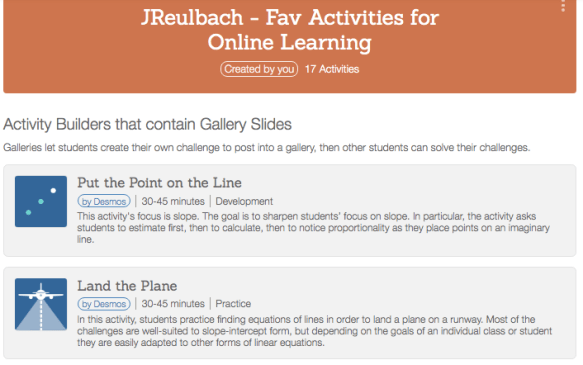

 I Speak Math