The Data of Germs and Hand Washing

Flu season is upon us – and we are working on percents!  What better time to estimate how many germs we have on our hands and investigate how long it really takes to get rid of them?  The CDC (Center for Disease Control and Prevention) defines proper hygiene as vigorous hand rubbing with soap for 20 seconds.  Most of my students were familiar with the 20 second rule, but not convinced of it’s effectiveness.  So, we decided to collect the data and find out for ourselves!

The Set-Up:
I gave them each a squirt of glowing germ simulating lotion which they rubbed onto their hands. We went into the bathroom, turned out the lights, and I shined the black light onto each students hands. This was FUN!  They were quite disgusted with the amount of “germs” on their hands. They were even more surprised to see so many “germs” on their faces, which they had obviously been touching way too much in the five short minutes since they had applied the lotion. It was easy to estimate at this point that the germ count on their hands was at 100%. Let the hand washing begin!

Hand Washing:
The students washed their hands with soap for 5 seconds and then rinsed. I turned the lights off again and we inspected them again with the black light. They were shocked (and disgusted) to see that their hands were still VERY dirty!  Each student then estimated the percent of germs still on their hands.

Rinse and Repeat:
Our goal was to analyze germ data at 5 second intervals for up to 20 seconds.  So we washed, analyzed, estimated, recorded and repeated three more times.

Results:
It took a solid 20 seconds to eliminate the majority of the “germs” from the students hands. The most difficult places to clean were the fingernails and the creases in the palms. The most often missed spot was right around the wrist.  Most of the girls were able to get the estimated percentage of germs down to about 2% while the boys seemed to get stuck at about 10%. The boys found this quite amusing.

Analysis:
After we finally got back to the classroom we loaded all our data into Google Docs and created line graphs.  We then uploaded them to the Handwashing page on our class Wiki.


After we graphed our data in Google Docs we discussed our findings. The kids were surprised that it took so long to wash all of the germs off of their hands even though most of them had either heard about the 20 second rule or knew of a “hand washing” song.  We then picked one of the songs, “Twinkle, Twinkle, Little Star” and sang it as a class while I timed us.  We all enjoyed singing and it took us 23 seconds to sing the song.

In Summary:
This was an extremely engaging and interesting activity!  It did take an entire class period as we only had four sinks and one black light.  But it really brought some fun to a cold winter’s day math lesson.

Looking Forward:
Next year I would like make this like a “Myth Busters” activity. I have since heard Myth Busters did a hand washing episode but could not find it. I would also like the students to do more data analysis and possibly even some comparative analysis.  For this, I am thinking of percent of change between the boys and girls or for each hand washing interval.
Wonderful World of Wiki Pages

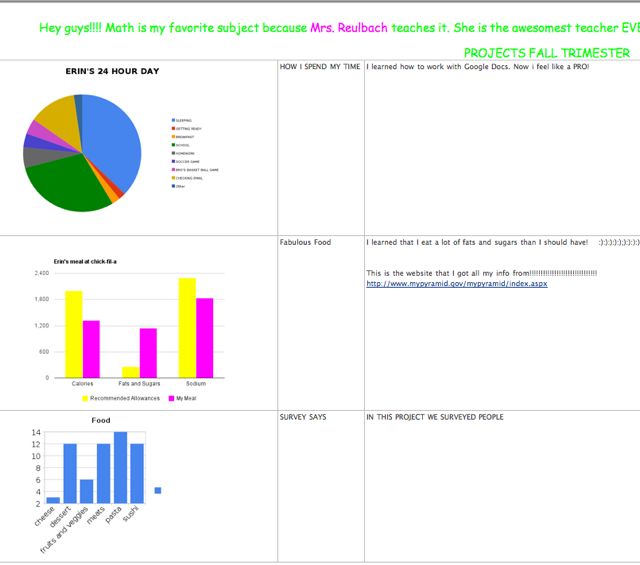
I created a math class wiki for my classes.  The students have been accessing this wiki since the beginning of the year for assignments, project instructions, resources for extra help and other random math links.  Last month, I let each student create their own math page on my MathReuls wiki.  They not only did a fabulous job with this – they loved doing it!  Now, as we do projects, I have them upload their work to their own wiki page.  This sounds simple, but it is actually a multi-step process and has been a lot for 6th and 7th graders to learn, especially my ones who are not as technologically proficient.  After entering all of the data for whatever project we are working on, they then have to “do the math” to analyze it.  This creates their work which they have to save, upload to the wiki, and finally add to their page.  I am so proud of them because they have done a fabulous job!


Student Wiki Page

Student Wiki Page

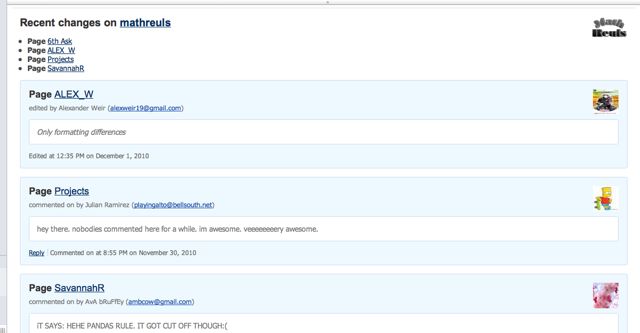
When you are a member of a wiki, you get emails to notify you of any changes that are made on the wiki.  You can choose how often you want to get these notifications.  Since I like to monitor how often (and what) my students are writing, I get notifications twice daily.  These notifications tell me who is editing their page or commenting, what page they are commenting on, what the comment or changes to their page they have made, and when these changes were made.  This all comes to me in one consolidated email that looks like this.

Wiki Notification Email

Wiki Notification Email

Their favorite things to do?  Formatting and commenting, of course!  They are especially creative with their titles, making their fonts various styles and colors and using hi-lights for the letters.  The love to comment also.  Some of my pages have over 100 comments!  No, they are not all math related.  In fact, most of the comments are not math related at all.  They are usually the students saying hi to one another on their page, or better yet, complimenting another student on their page.  I require that all of the content on their math page be math-related only, however, I do not mind that the comments are not math related.

**  The most fabulous thing about students having wiki pages is that they look at them (and even work on them) all of the time! **

This means that even if they are not “working” on math in the evenings, on the weekends, or over Thanksgiving break, they are looking at math via their wiki pages almost DAILY.  And I do mean daily.  I would never assign homework to middle school students over a holiday.  However, my students edited their own pages and commented on each others pages all throughout Thanksgiving break.  Many of the comments were complimenting another students page, which meant they were at least looking at and reading math when I didn’t even ask them to.

As a teacher, I consider that success!

Their wiki pages.

6th Grade

7th Projects

Skype + NC = NYC! Stop-Motion Movies and Technology in the Classroom

The 7th grade class at my school is currently working on a cross-curricular Japanese Anime project where they creating their own stop-motion animated films based upon environmental themes.  The students work in groups and come up with their own idea relating to the theme, the characters they would like to use, and how they would like to present their message.  Then, in the classic stop-motion animation style, they take a series of pictures that they edit in imovie to create an animated film.

The project, The Animated Classroom: Using Japanese Anime to Engage and Motivate Students, was recently written up in the September edition of the English Journal.  For the math aspect of this project, the students read and timed their entire movie, and then read and timed each scene.  The art teacher and her previous students had determined that they would need 2-3 pictures per second to make the animation appear “smooth”.  So I had my students calculate the range for the number of pictures they would need for their total movie and for each scene based on this estimate.  It is important that the students take enough pictures as it is often difficult to go back and take more pictures once the shooting is over.

The students take all of the shots and do their own editing.  The characters in their movies can be anything from lego figures to barbies and paper dolls, or they can draw on a whiteboard.  An interesting part of the project for students is determining the angles to take the shots from, and how much they should pan or zoom.  Since the characters aren’t alive, it would be very boring (and not very animated) for the characters to be just standing facing each other during the talking.

Fortunately, I am friends with Matt Clark, the two-time Emmy nominated Director of Photography of the NBC hit show 30Rock.  With this project looming, and all of these camera angle questions in mind, who else better to ask than an extremely talented and exceptionally good-natured cinematographer?

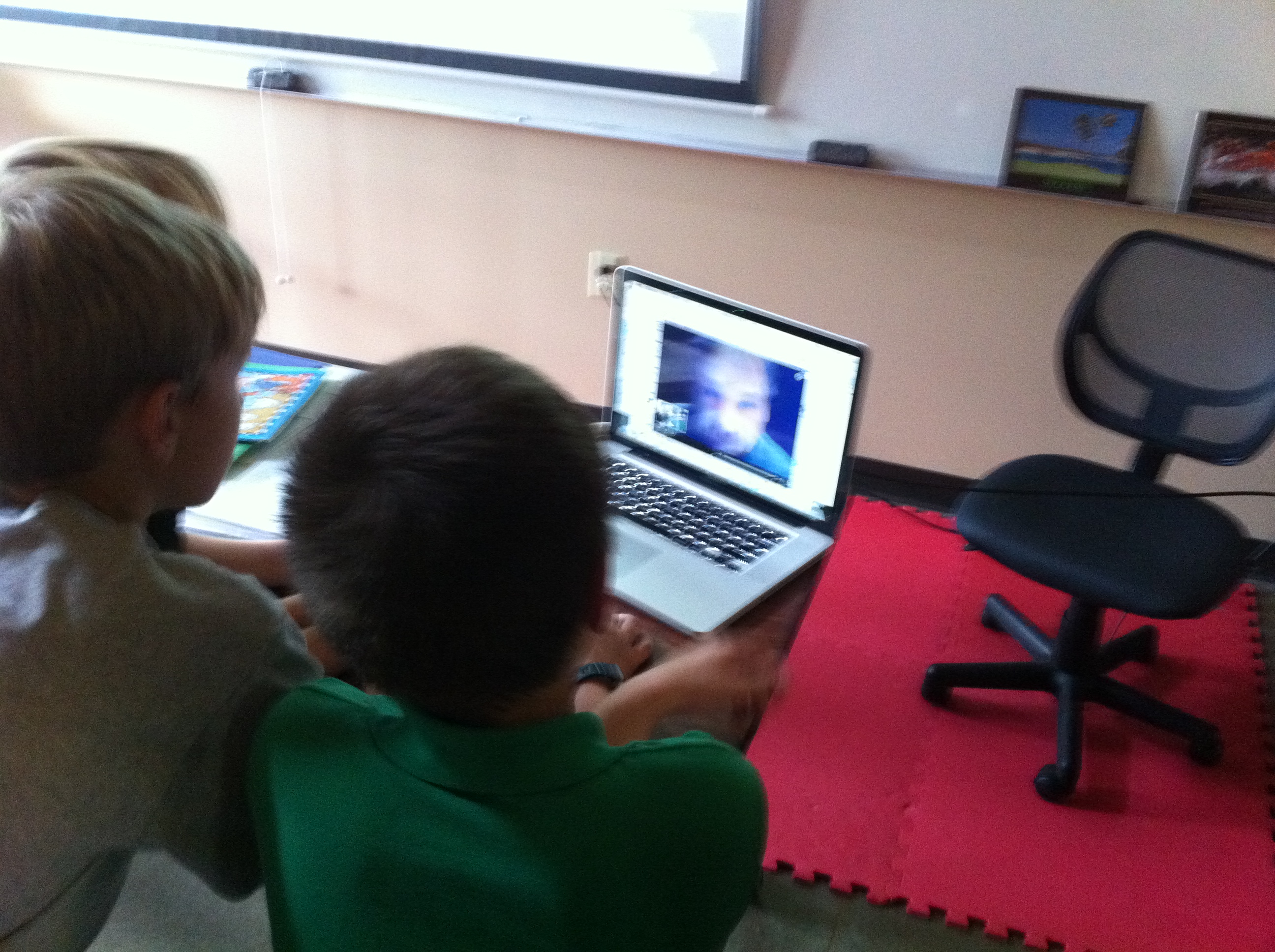
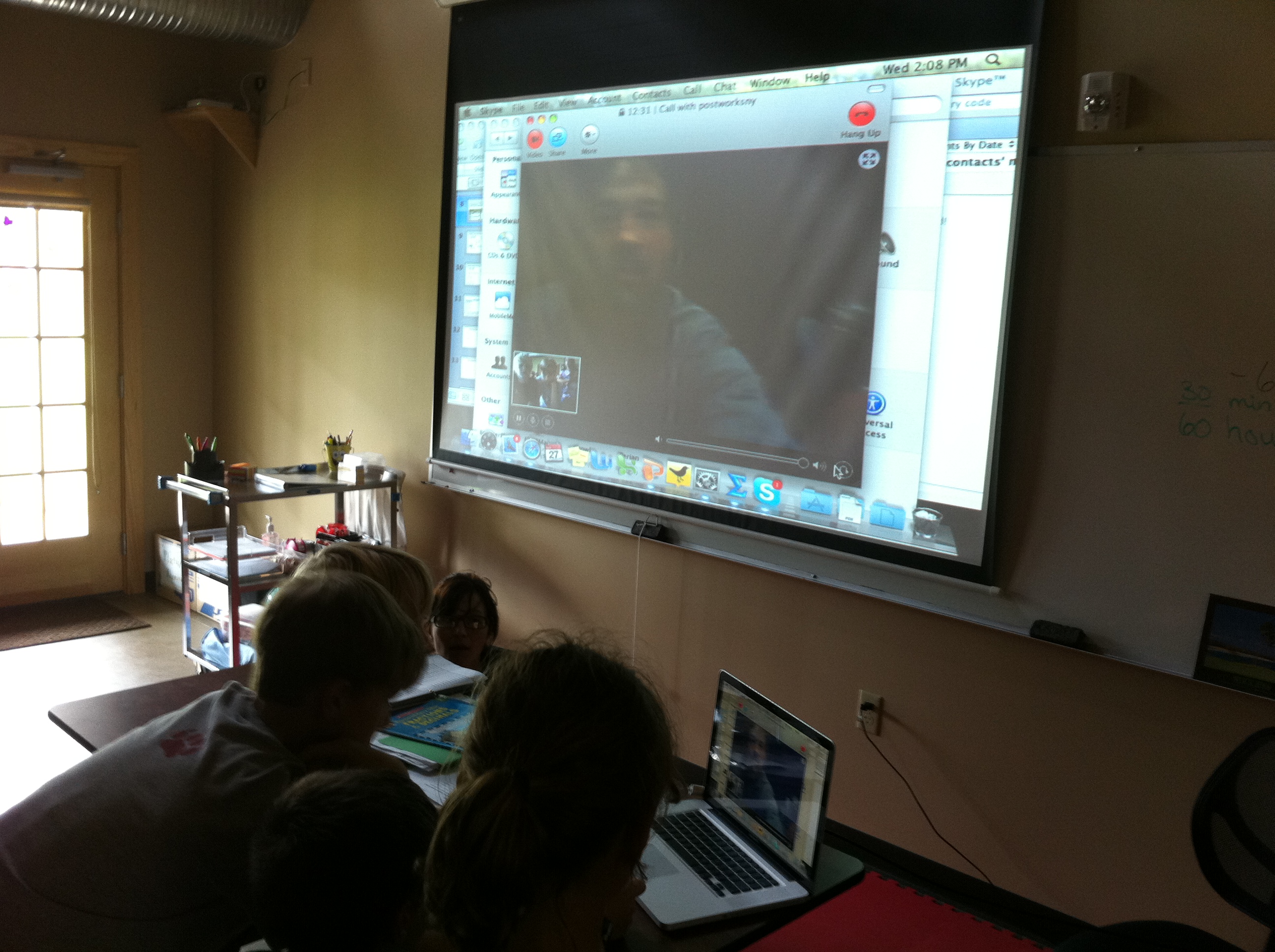
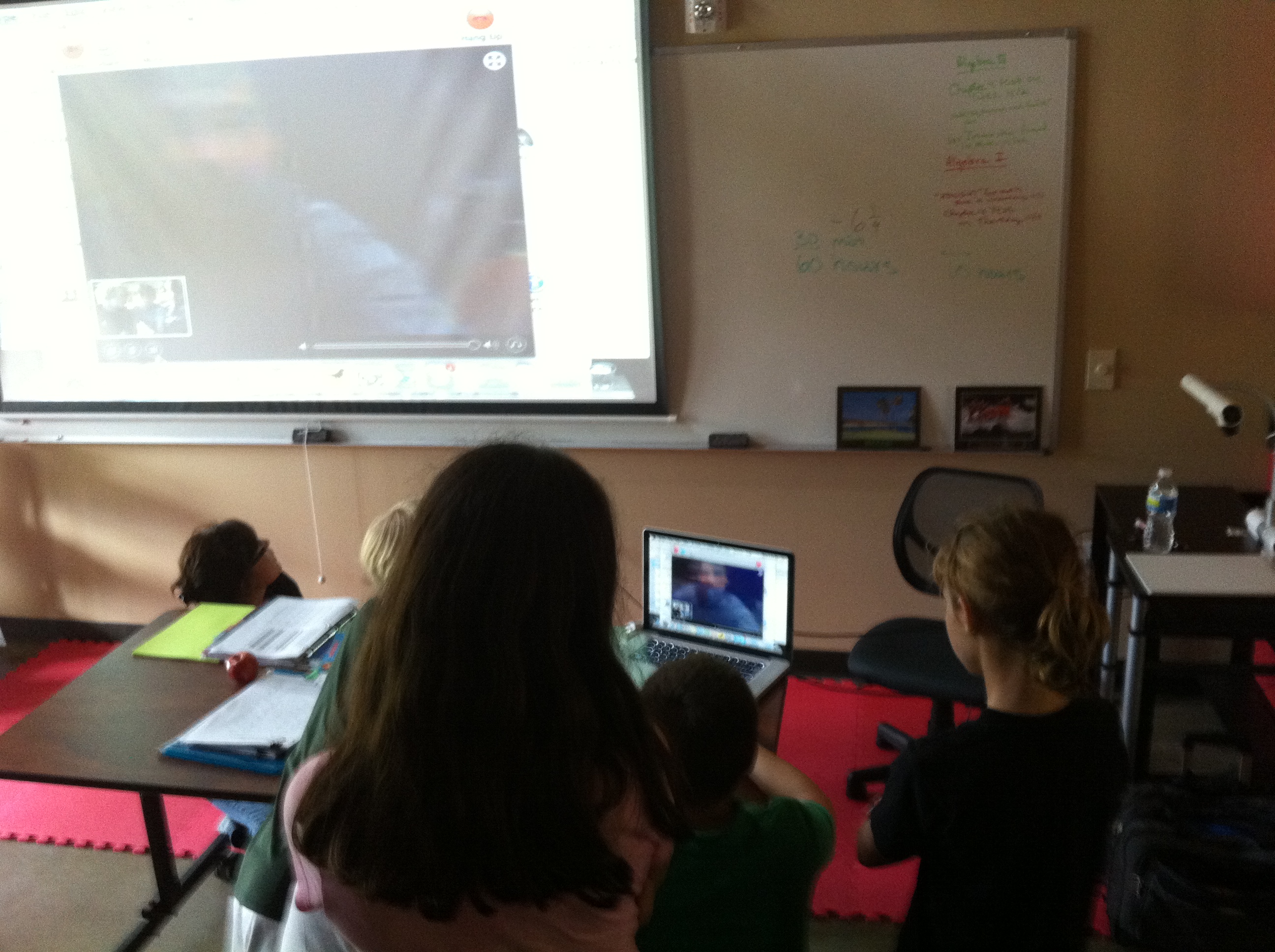
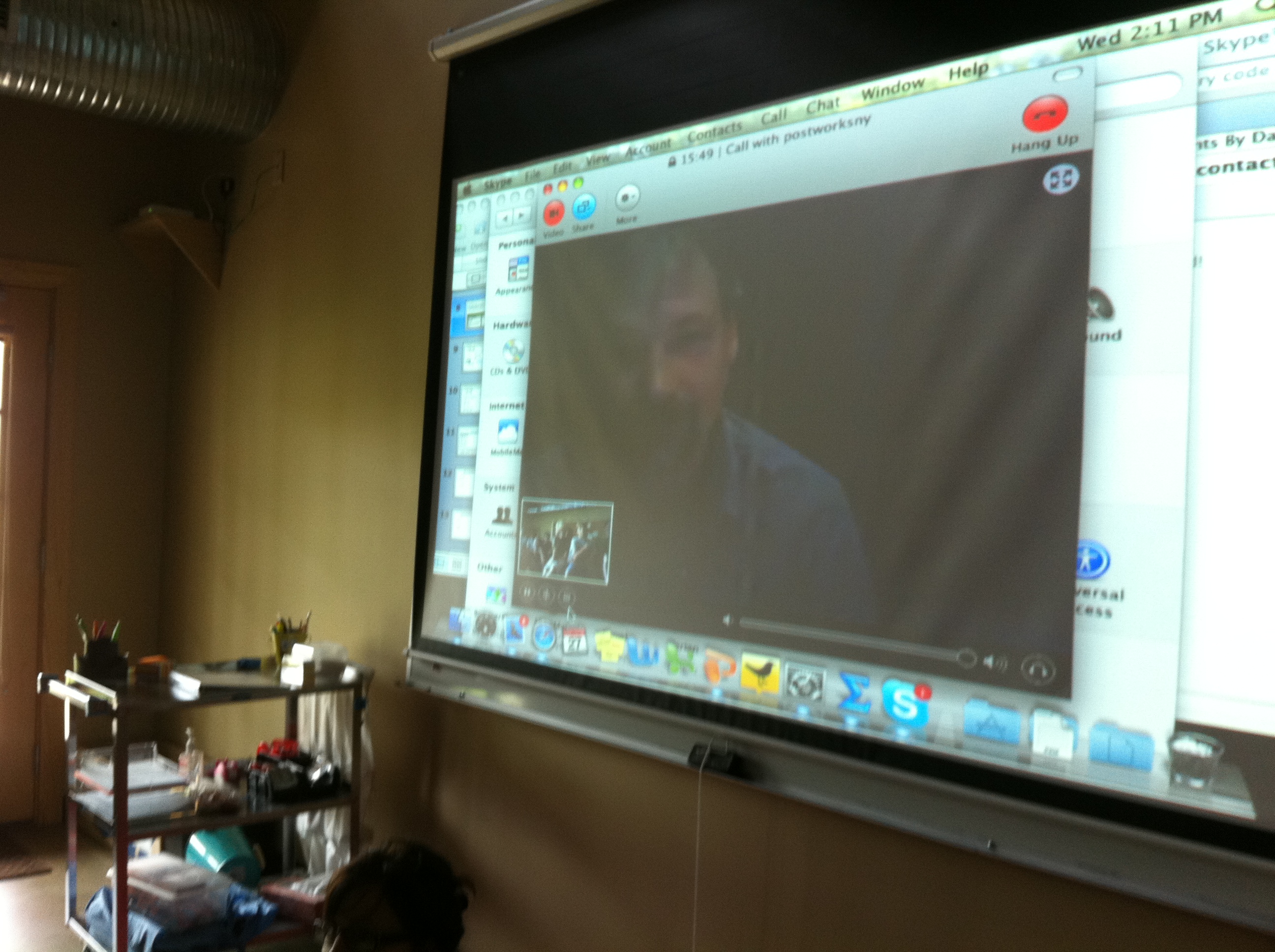
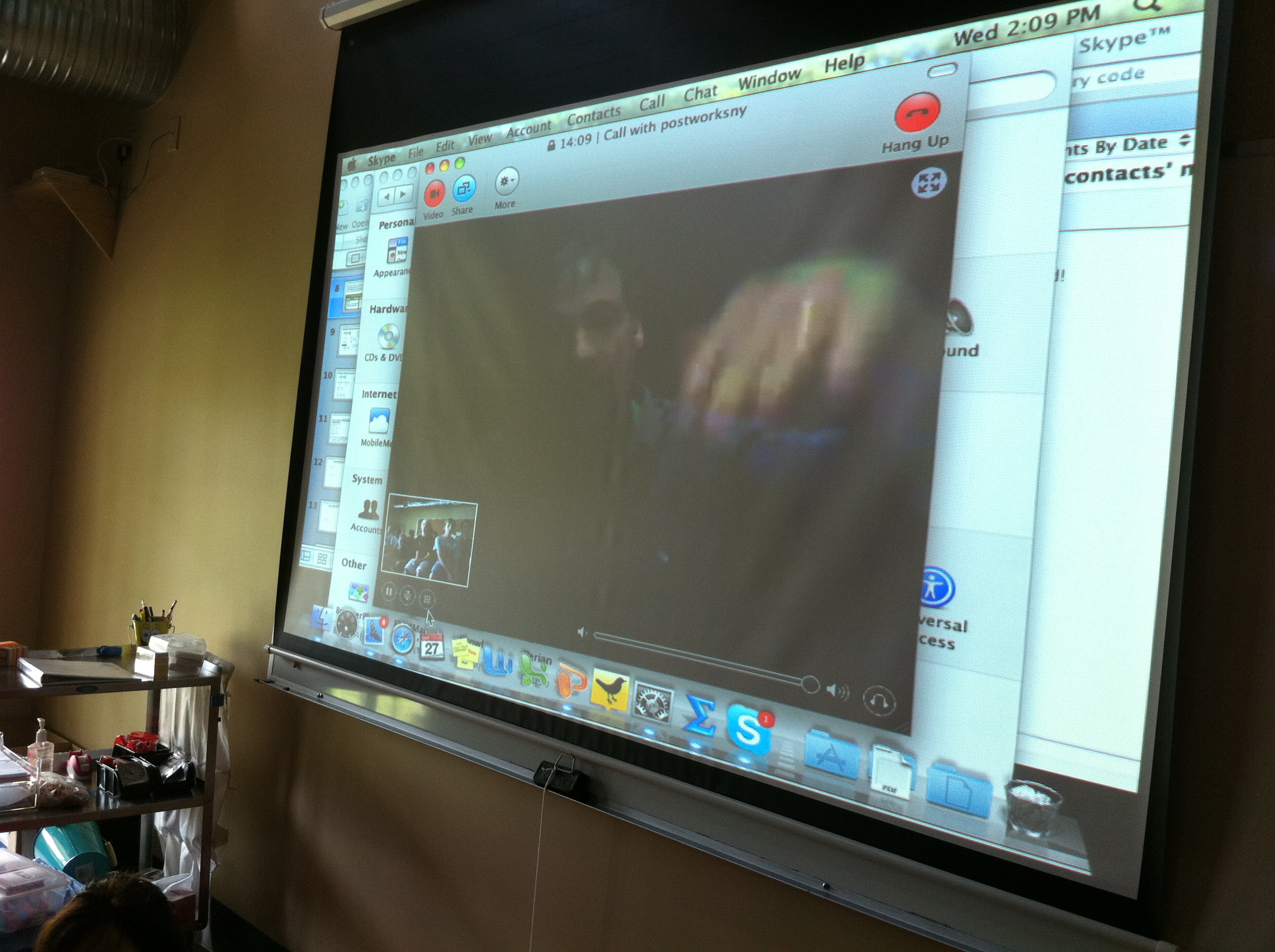
Thanks to Skype, we were able to live stream Matt into my NC classroom directly from 30Rock’s NYC set!  Thanks to a overhead projector, we were able to put his face on the BIG screen!  However, for him to see the students, they had to sit in front of the computer when they asked their questions.  We also hooked into the sound system in the room, and it was great hearing his voice overhead!  But there was too feedback, so we had to go back to computer audio.

Each group collaborated before the interview and came up with the questions they wanted to ask him.  The students came up with some fabulous questions and I was impressed by their professionalism.  It is so hard to believe that they are only 12 and 13 years old sometimes.  They are an amazing group of students!  Some of the questions the groups asked about were camera angles, panning, zooming and the amount of hours it took to film a 30 minute episode (the answer is 60 hours!).  Thanks Matt for the math lead there – we are going to find that rate tomorrow in class and see how their filming hours and finished film time compare to 30Rock.

When they were finished asking their group questions we had a couple more minutes so Matt gave them more great tips about filming.  Then, I let them ask their fun questions.  They were most interested in the number of re-takes Matt had to take (especially of Tracy Jordan)!  At the end, they thanked Matt and then all at once said, “Who Dat Ninja?”.  That gave Matt a laugh.  My students had obviously been planning that one.  ; )

Click here to watch a video segment of our Skype call!

The video is on YouTube now but will be embedded once Zamzar is finished converting it!

Tomorrow the art teacher is going to have the students chose two of Matt’s suggestions to incorporate into their film.  It should be another exciting day!

I Just Cannot Get Over Google Docs!

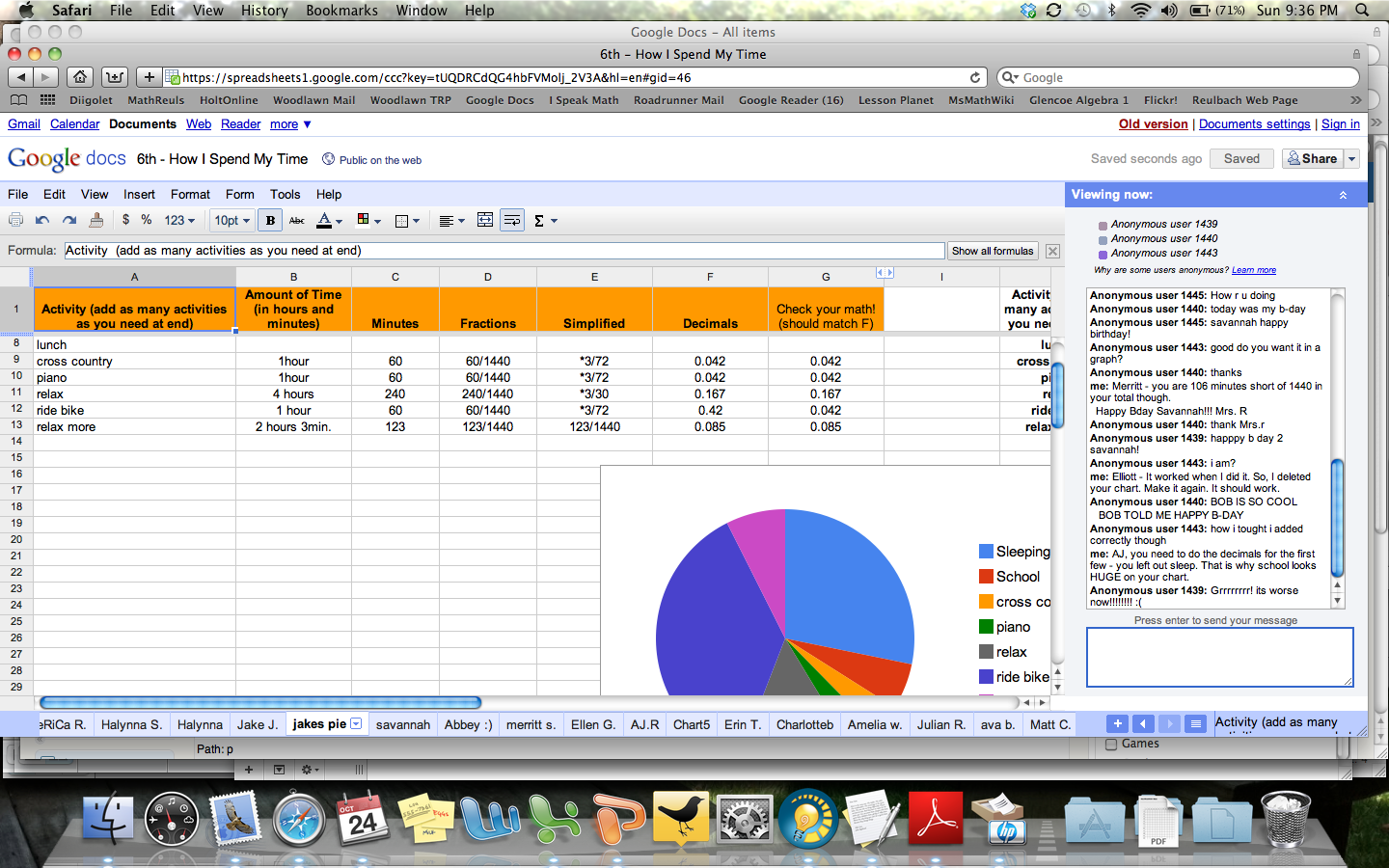
I really cannot get over Google Docs.  I just CAN’T!  It is so amazing!  I am having my 6th graders finish up their “How I Spend My Time” Google Spreadsheet project this weekend.  All they had to do was enter in their decimals, insert a chart, and then print it out at home.  Many students finished entering all of the information during class, so they just had to insert the chart and print at home.

There are two things that I love about Google Spreadsheets.  One, as a student types, I can WATCH them type!  Two, if they have questions, they can ask me i in the chat box.  Then, I can give them suggestions and even look at their sheets to see what is going on.

So, it’s Sunday night and I am working now that the kids are in bed.  I open the Google Docs to see how my students are doing.  I pop into the chat box to ask them if they have any questions.  I look at their work and help a few of them.

Here is a screen shot from my computer of all of the action (click on the picture to see everything including the chat box and the pie chart)!   It’s amazing, and I love it!  Everyone should try this!

Google Docs in Action!

Google Docs in Action!

Making Middle School Magic – Powerpoint Jeopardy!

Yes. Today was simply magical in my 6th grade classes!  They came into class with Weird Al’s “I Lost On Jeopardy” rocking the classroom at full blast!  I had them dancing like crazy before class began.  I even had a few guess, “Are we going to play JEOPARDY?!?!?”

I put them in six groups (two to three students in a group) and gave them whiteboards. The rules were that ALL group members had to agree on the same answer and ALL members had to have all of the correct work on their boards. I went i order around the room and let each group pick a category/point value. However, if they MISSED the question then another group got to try to answer it. I picked this group by rolling a dice.

I used a PowerPoint Jeopardy game that I found online and tweaked. I found a Jeopardy theme song midi online and added it to all of the question slides. Although the music got really old for me by the middle of the second class, it added a bit of fun and even excitement to the game. The music made the kids try to “beat the clock”.

This game went so well! The kids worked harder than I have ever seen them work! Most importantly, they worked together better than I have ever seen! They were all intensely engaged and at the end of class they even BEGGED for just one more math problem!  (Which I of course could not help but give them – to the detriment of their next class, sorry JuRu.)

I need to work on this game some more as several of the links were corrupt. Also, you could not tell which questions had been selected. I am actually going to create my own game with all of the bells and whistles and then post it here so please check back!

Wiki’s, Google Docs, and Population Density in Math!

** All links I refer to are listed at the end. **

On Friday I did an integration unit with social studies.  They are studying Japan and population density.  We got wifi in our building late Wednesday night, so I decided it was time to “break out” the laptops on Friday!

I used a fabulous lesson that I found on NCTM Illuminations called “Five’s A Crowd”.  It was a great activity so I only had to modify it slightly.  It covered population density, ratios, and even estimation!  And, it had a game element so it was very fun! I used their grid worksheet but modified their game sheet.  Of course it was my first time doing anything like this so we had some bumps in the road, but next year it will be so much better!

1)  First the students distributed rice onto grids to visually compare population density of two communities, and to create a definition of population density.  The only thing I had at home that was small enough for the grids was arborio rice.  So, I used colored paper so the rice would show up better.  The kids loved the rice (apparently it was tasty and of course I let them eat it after the activity was over).  But, it was very hard to move around because it was so small.  Next year I am going to enlarge the grids and use a small dried bean – like black beans.

2)  Then we talked about the density of the United States.  We wrote down the exact population and area of the US and then I had them estimate the population density without using a calculator using the definition that we found in number 1.

3)  Next, I gave them the “game sheets” and they had 5 minutes to try to estimate the 5 densest countries in the world using lists I had compiled and put on the wiki.
**Big Bumps Here:

  • I used Box to put the files on the wiki and some kids could not download the files (it was freezing).  NEXT year I will just put the PDF on the wiki.
  • My kids needed longer than 5 minutes.  I had them write down the exact population and area of the places we picked and THEN estimate (not calculate).  So, it took them longer than I thought.  10 minutes next year!

4)  When I finally made them stop (and they didn’t want to), we were seriously running out of time.  So, even though I had planned to have them enter all five countries into a Google Document spreadsheet that I had created, I only asked them to enter their MOST dense country.  They were to enter their country, their exact data, and their estimate.  Then, I had a column that calculated the exact density so we could see how close their estimate was.  Then, I was going to sort their list and pull in the top 20 most densely populated countries to see how good their estimates were.

This is when my lesson went HAYWIRE.

First of all, I didn’t even know if the Google Docs were going to work.  I didn’t want to spend time having students sign up for accounts or sign-in so I made my document editable by everyone.  If they couldn’t enter the info, we would have skipped this part.  But, voila!  It worked!!

Since I didn’t know if it was going to work, and this was our first time using it (including MY first time), I did NOT prepare them for what would happen.  And to be honest, I didn’t even anticipate the snafu’s that we would encounter.  The kids were simply AMAZED that what they entered showed up on the projector and everyone else’s computer.  They had never seen or used this sort of interactivity.  They were very new at this and very excited, and this caused several problems:

  1. They entered the data in crazy places (ie – they deleted my title column “Countries” with their county’s name).
  2. Since they were doing it all at the same time, everyone clicked on ROW 1 to enter their data -at the same time.  Thus, one kid would start typing and then another kid would accidentally erase it.
  3. I saw this quickly and told kids to go on different lines
  4. Some students thought the deleting thing was too hilarious to resist and started deleting each others entries, it really became a “deleting war” at the end.  They thought it was funny – I (and some students) did not appreciate that.

With all of the craziness that ensued I barely got to throw up all of the amazing population density graphs I had found AND play with the SORTABLE wikipedia population density by country data that I found.  I would have liked to spend so much more time on this stuff!

Overall, though I still think the lesson was a smashing success because it was interesting, fun, and even exciting!  It was very enriching to add real life statistics and integrate their current social studies lessons into pre-algebra!  I NOW know what to expect when using Google Docs with a whole class of students at once and can prepare them, in advance!  ALL of these snafu’s were completely my fault and could have been easily prevented with proper instruction on HOW to use Google Docs to the students.  Too bad for me I just didn’t know those instructions in advance.  But, I think that we all learn best by doing it ourselves and I learned so much from this lesson!

I can’t wait to use Google Docs again in the future!

LINKS:

Amazing Things to do with Google Docs

I love meeting great teachers who have great ideas!  Today I got some ideas about how to use Google Docs from @msgregson and wanted to get them down here to share with everyone.  I have tagged her as “Gregson Google Goddess”.

  • First Day Information Form – Students go online during class and fill in all of their information.  This is BRILLIANT bc the info that THEY type in goes into your beautiful, sortable, Google Spreadsheet
  • Parent Information Form – Almost the same form as the students.  This way you get the parents preferred email, cell phone, method of contact.  Also, @msgregson said she liked it bc parents could send you info they would not want their child to see on a form they had to fill out and send back via child.
  • Google Powerpoint Presentations – Up to 5 students can work together on one Google Powerpoint presentation simultaneously.  I think this would be a great “teach the class a topic” lesson.
  • Google Spreadsheets – Up to 50 kids can work on a Google spreadsheet simultaneously.  Wow.  I can see them all in class entering their data at the beginning and then being able to instantly start working with the combined data.
  • Google Forms for tests – you cannot put equations or pictures in a google form so she worked around that by making another site with the test, then you just enter the answers on the Google docs.  Great work around.

If you are using Google Docs (or any other amazing technology) in your classrooms, please post it here or to the Math Teacher’s Wiki.  Alternatively, you can email me and I will add it for you.

Oooooozzzzing with Technology This Week!

In Math Teacher Twitter land I am officially, “A Noob”.

I taught for years, but after being out for eight years I am amazed at what I have missed.  Twitter, Blogs, Wiki’s, and Google Docs top my list of “things I cannot believe I have missed out on even though I wasn’t teaching”.

But, I am back!!

With my type A++++ personality, this is technology deficit is more than mildly irritating so I am racing to catch up.  However, most days I feel like I am running just to stand still.  This week my children are in all-day soccer camp so I have been especially technologically productive (even though I haven’t done ANY of the lesson planning I had slated for the week).

What I have done this week:

1.  Made a new Wiki for math teachers – Math Teacher Wiki

What I have learned this week making the Wiki.

  • How to make it public so that everyone can participate without having to manually give everyone permission.
  • What a “steal lock” was and what it meant, thanks @misscalcul8!
  • How to invite tweeps to participate
  • What a sidebar does
  • That I need to learn how to make it pretty b/c it is UGLY now.  : )

2.  I created a MathLog calendar on Google Calendars for my new MathLog Club for teachers.

I learned how to:

  • Make it public
  • Invite people
  • Find the link to share it on Twitter
  • Add my “out” dates and view other’s “out” dates
  • Imbed it into the Math Wiki!

3.   Created a Facebook Fan Page for my future students.  Thanks to some amazing Twitter friends this was amazing fun to learn!  However, it turns out that I will be unable to do a FB Fan page with my students.  Turns out that you have to be at least 13 to get a FB account.  Since I teach 6th and 7th grade the majority of my students will not “officially” qualify.  I am sure that many of them already have accounts, however I do not feel comfortable “officially” encouraging it.  This is the day I realized how young the students are that I am going to teach!

I learned:

  • You can make a FB Fan page with your account, but it is not visibly linked to you
  • When you make a FB Fan page under your log in you can easily edit and update the page without having to log out and log into another FB account.
  • You have to “like” the page to become a fan of your own page so you will get the updates
  • Others can “like” your page without becoming your friend.  This is crucial for me as I don’t friend my students
  • You are SUPPOSED to be 13 to get a FB account.

4.  I also learned how to change the DELETE key on my Mac keyboard to act like the classic BACKSPACE key on a PC.  This was essential to my way of typing life.

As I’m still the NOOB please feel free to tell me all about great things that you do with technology in the comments section or on the Math Wiki.

How Do You Use Google Docs?

Thanks to Twitter, and especially @msgregson’s constant promoting of Google Docs I decided that I had to check it out.  I already use the Google calendar to sync my life.  And, all of my wiki sidebar apps come from Google so I was hopeful it would be a great resource.

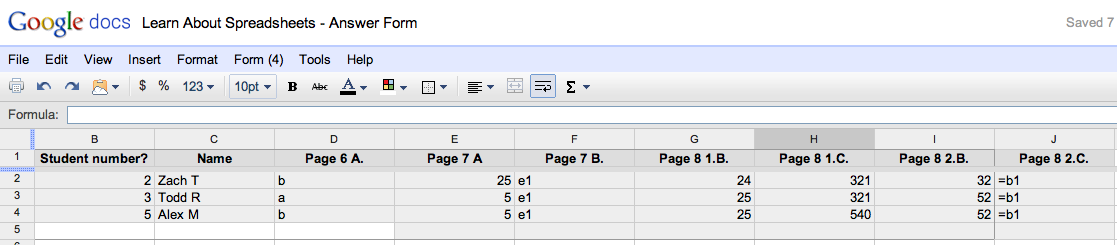
I was not disappointed!  I created a Google Form on my new class wiki.  Students will go to the wiki from home, click an assignment to open it, and then answer the questions in the Spreadsheet Activity Form.  Then, Voila – their answers will instantly appear in a spreadsheet on my computer!

Spreadsheet Activity Form

INSTANTLY, I get the results in a spreadsheet created in my Google Docs.  It looks like this and can be edited and sorted.

Spreadsheet generated by the Google Form

Spreadsheet generated by the Google Form

Why I love this:

1)  It is paperless.  I love that it is green AND I hate dealing with stacks of paper.  So less paper = happy teacher + better earth!

2)  It is all in one place.  I don’t have to carry the papers home with me or stash them in my full, full bag.

3)  It is organized.  I assign my students a number based on their name in the alphabet (1 – 16).  I have them enter that number into the form and then can sort their answers alphabetically so facilitate easy grade recording.  It is also an easy identifier of who has submitted without using last names.  And again, I don’t have to manually alphabetize a stack of papers!

Question – How do you use Google Docs in your class?

How are other math teachers successfully using Google Docs in their classrooms?  If you are, please comment below and please provide a link to an example if you have one handy!

My First Powerpoint Presentation

I just learned Powerpoint and this is my first go at it.  I plan on teaching some data analysis first thing in my 6th and 7th grade math classes so that I may use relevant data to teach with throughout the year.

In Powerpoint:  http://reulbach.pbworks.com/Data-Analysis

In PDF:  http://reulbach.pbworks.com/f/Survey.pdf

I would LOVE comments and suggestions as:

1)  This is my first ppt so I know it needs work.

2)  I plan on doing more ppt asap so I would love tips so I can improve subsequent presentations.

3)  This is my first time teaching to this level (MS) so I don’t want to go too high or low.

Thanks in advance for comments, suggestions, or any assistance you can offer!