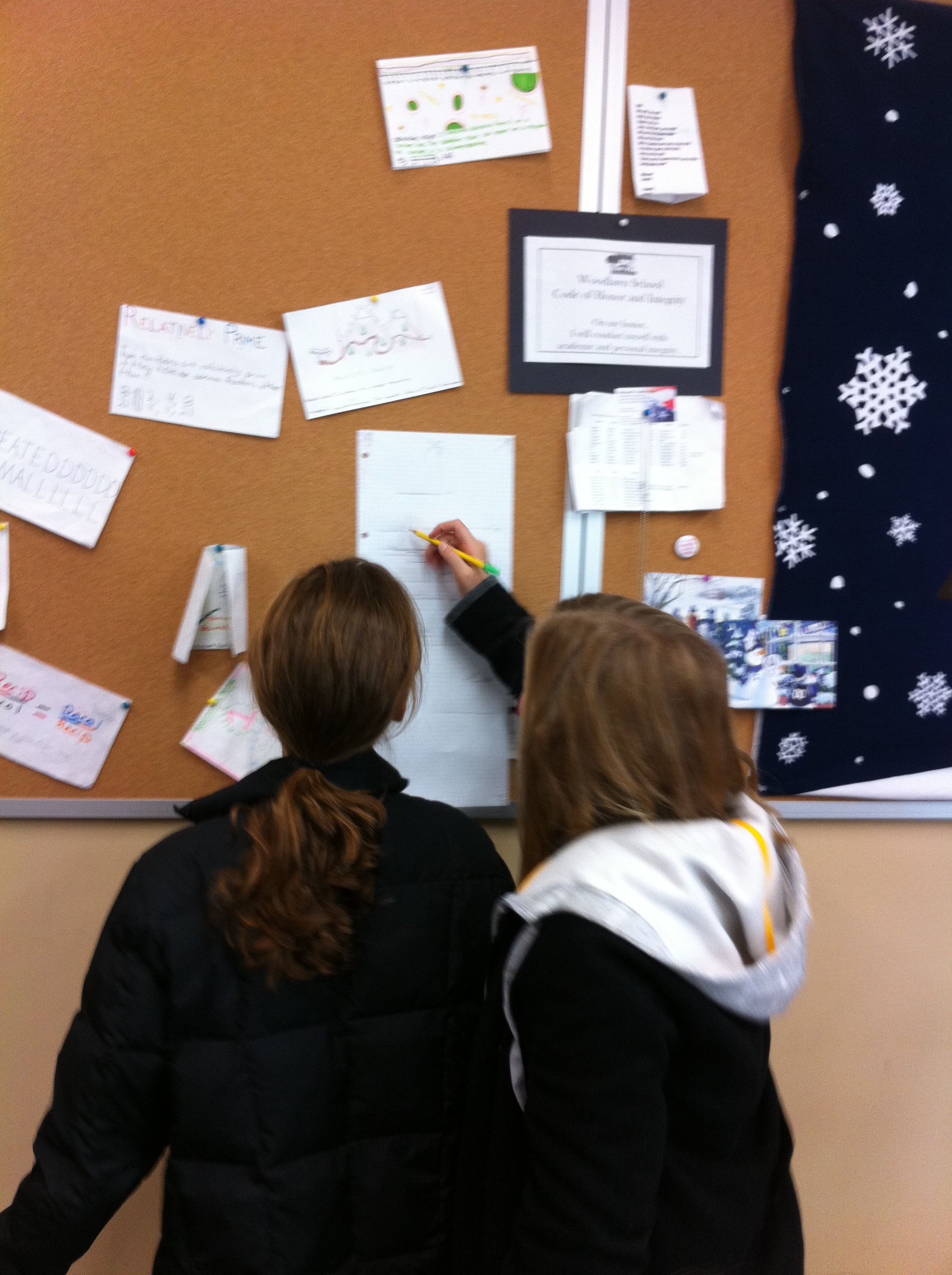
Technology in the Mathematics Classroom

Our middle school has been one to one for the past two years and I love it.  I mostly have the students work on Google Documents (Drive).  The best things about Google Documents are that it is free, updates instantly, allows students to collaborate, and there is no software required.  I occasionally use Khan Academy problem sets for students to practice their basic skills.  I like it because students can easily find the next topic to work on once they are proficient in one topic.  I don’t love that I can’t chose the level of problems they work on, some of the topics aren’t covered, and some of the question sets are too broad (or advanced) for my students.  Plus, even though I have directed them where to go next on Khan academy, students often jump to things like one step addition and subtraction just to gain points.  I have been using ThatQuiz.org lately too.  I really love all of the options that I can pick AND that I can create my own quizzes!  I have been using this for extra practice, and to see how my students are doing on their basic skills.  My big problem here is just finding the time to create more assessments.

Our 9th grade is piloting an iPad program this year.  I have an iPad, but I can’t say I love it.  Google Documents are almost impossible to use on an iPad.  I also can’t edit my wiki pages either.  I’ve heard there is a way around this, and I tried but didn’t find it.  Since GDocs and wiki’s are 90% of what I do for my classes, my iPad hasn’t been of much use to me this year.  It’s just a big old iPhone that isn’t even a phone!  So, I’m very excited to hear if there is something actually useful for that big old waste of money, and not just “cool” because it is an iPad.  If you don’t feel like writing a blog (or don’t write a blog), you can leave me a comment to tell me why you love iPad’s for your math classroom, OR even to help you out in your classroom if your students don’t have them.  But, we only have one iPad (mine) right now, so as much as I love Apple and my Mac, I’m just not on board with iPads for students right now.  The benefits would have to be very high to outweigh the costs, especially since all of our students have laptops.  So, what I am also wondering is, given the choice, would you rather your students have laptops or iPads?

Survey Project – Creativity, Collaboration, and Technology

The “Survey” project is my favorite project of the year because it combines technology, creativity, and collaboration.  This project incorporates three different Google Documents, word, spreadsheet, and presentation (two groups even created a Google Form).  The students create their own survey question and decide how to best display their data.  Students also have the option to work together.  My students love working with each other, being creative, and technology so they are completely engaged throughout the project.

Working individually or in small groups, students created a survey question, then determined their population and their sample.  I created a survey form on Google Docs that they had to duplicate, fill out, and share with me to gain approval for their survey questions.  The Google Document was very useful as I could make suggestions with the “comment” feature while they were working on them.

Once they had approval, they were off to collect data.  I have given them several surveys over the past year using Google Forms and I was very impressed with a couple of groups that created their own Google Form to collect their data.

Students created a Google Spreadsheets to analyze and display their data.  They have used Google spreadsheets in my class before, but have not created their own.  They first made frequency tables and then created a chart of their choice to display their data.

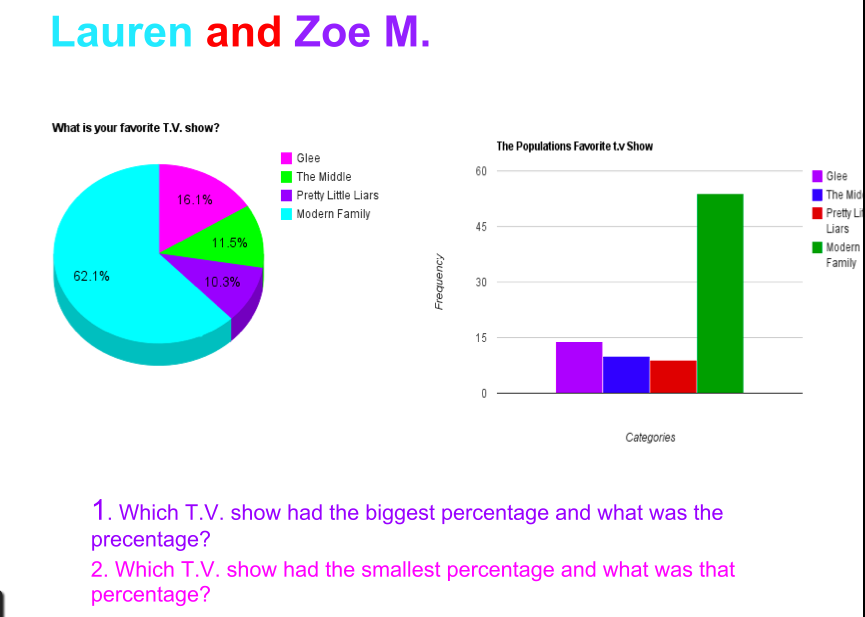
Once their charts were created in a Google Spreadsheet, they inserted them into a Google presentation.  I created a single Google presentation in which they all were to add their charts.  This way, I have all of their results in one place.  I love doing this for two reasons.  Having all of their work in one document is wonderful on presentation day because we do not have to wait for every student to access their own document when it is their turn to present.  It also makes it very easy for me to grade.


 A great result of this project is that I now have one amazing and creative document made by the students to teach with not only this year, but also for future years.  I had the current students come up with two math questions relating to their chart(s), and the answers to the questions on the next slide. This year, students will ask the questions of their peers as they present.  Next year I can use this document full of bar graphs, double bar graphs and pie charts to teach other students.  My current students are very excited that I plan to use their projects to teach next year’s students.  And, I believe that my future students will be more interested in the learning about these charts because they were created by students.  Everybody wins!

Let’s Get W.I.L.D. – Wiki Independent Learning Day

Yes, apparently I am obsessed with acronyms this summer.  But, when you can make them fun (WILD) and mean something great I just cannot help myself!

I teach 6th and 7th graders.  Middle school is their transition time.  It is when they begin to grow up and become independent learners.  Becoming an independent learner is a corner stone of our school philosophy.  I know that this takes time and can even be difficult at first, especially for students coming fresh out of elementary school.  My goal is for all of my students to move from being dependent upon me for all of their learning, to becoming independent learners.

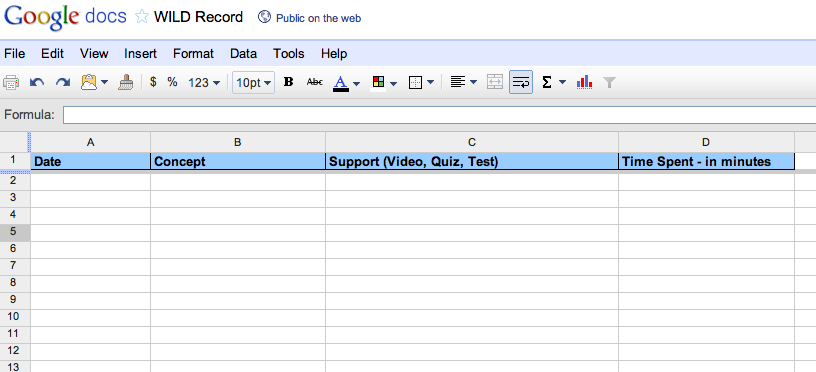
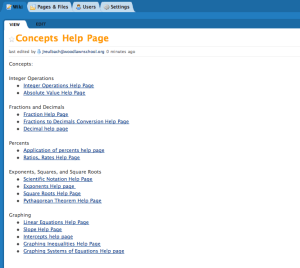
To help my students achieve independence in their learning, I am going to have designated WILD days this year.  On these days I will have students start on our student created wiki help pages to access websites to work on different concepts.  They can start with concepts in which they are not proficient.  Students that are proficient in most concepts can work ahead so that they will not be bored reviewing concepts they have already mastered.  They will keep an online WILD Log that they create using a Google Doc spreadsheet.  This GDoc will be shared with me so that I can monitor their progress.

I expect that helping students target what they need to work on and finding the best resources will be high maintenance at first.  Eventually however, I would like the students to learn to tailor their own learning.  I want WILD to be interesting and challenging for students of varying ability levels.

Here is what I have for the GDocs WILD Log, but I would love more ideas on how to make the Log (or anything else) better.

Google Docs Spreadsheet “Word Cloud” to Analyze Student Survey

I have always thought that Wordles (or word clouds) were fun and interesting.  However, I have never thought of them as “useful” until today when I read Becky’s Wordle Post.  Inspired, I scoured the net and found out from Free Technology For Teachers that you can create Wordle-like word clouds inside Google Document Spreadsheets!  Google Documents has a “Word Cloud Gadget” that will turn your entire page, or even just select cells, into a word cloud.  You can pick any words that you want to exclude and even chose the number of word that you want to use for your word cloud.

I instantly thought of the anonymous student survey that I gave to my 6th grade class.  I loved reading their thoughts and meant to summarize their answers but did not get around to it.  The Word Cloud was a perfect visual summary of how my students felt about their math class.

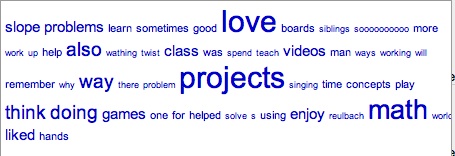
Since you can pick any cell in your Google Spreadsheet, I decided to focus on one question, “Please tell me something (or things) that you enjoy that we do in this math class.”  Here is the Word Cloud generated from that question.

I enjoyed seeing the words love, math, and projects.  The projects jumped right out at me!  This is my first time teaching in a project intensive school.  This Word Cloud zeros in the fact that students are feeing a love of math in my class, and it is because of the projects that I have created.  Since my goal is for all students to love math, I obviously need to get busy and create more projects.

My goal for this summer has been to create interesting projects for each unit.  It has been a hectic summer, and I haven’t gotten as far as I would have hoped.  However, I am determined to develop at least one interesting project per unit.  If you have any great projects from 6th grade – algebra I, please include the link in the comments or email me.  After this word cloud, projects are my new number one summer priority.

Google+ (Google Plus) for the Classroom

Last week Twitter was a flutter with talk of Google+.  Via invite (thanks Kate!) math tweeps from around the country were able to sign-up, add circles, and connect.

I am a technology junkie, so I love exploring new technology as soon as I can get my hands on it!  Google+ has potential.  The two things that appealed to me the most were the circles and the “Hangout” features.

The circles allow you to categorize your GooglePlus friends.  This solves the problem of friending your students.  Friend away, because with circles you can specify exactly who will (and who will NOT) see every post that you share.  You can pick a circle to send a message to, or even just one person.  This is similar to the private messaging in Facebook, but it is rolled into the front page.  You don’t have to go to a separate place to send a message, you just type it right into your stream (status) and then pick who you want to see it.

The Google Hangout is Skype-like as it uses your webcam and mic for interaction.  You see who you are talking to on a large center image.  However you can also see all of the people “hanging out” in your room at the bottom of the screen.  The neatest feature is that when a person talks, the large image automatically shifts to the person talking.  It does this via sound.  So, even when no one was talking, the screen would shift to the person making any noise (like a dog barking in the background).  Reportedly, up to 10 people can “Hangout” at a time.  We had 6 or 7 last week so I haven’t tested this limit yet.  In Hangouts you can also chat and watch YouTube’s together.  I pushed every button in every box to try it all out.

An advantage of using Google+ in my classroom is that my students will not have to sign up for another new account.  Since I use Google Docs daily in my classroom, all of my students already have Google accounts.  My students currently sign up for my MathReuls wiki, Google Docs, and use an online book.  I like that they will not have to sign up for any additional accounts.

Once Google+ opens up and allows everyone to join, I can envision this as my new “Homework Hotline” in the evenings.  I use a Google Document for my current “Homework Hotline”, but it is cumbersome explaining problems to students by just typing.  Too much gets lost in translation.  It is confusing.  I tried Scribblar, but my students had to create new accounts to use it so I decided against it (update below).  I like that I can talk, Skype-like, to students.  Each student can talk and it will switch to their face so I can see who is asking the question.  We can also type in the chat as we talk.  A disadvantage of Google+ as a Homework Hotline is that currently there is no “interactive whiteboard” feature to draw or upload images into yet.  However, you can just write something on paper and hold it up to your webcam for students to see.  Think old school meets new technology.  I actually may like this better for now as every student you are working with online will need to write down the problem and work on it for you to see instead of all drawing on the same interactive whiteboard page.

Until Google+ becomes readily available for all, I will continue to search for an easy to use, feature rich site for my Homework Hotline for the fall.  I am currently experimenting with Dabbleboard with my fabulous math teachers Tweeps.  There is no required sign-up, so my students can just click the link and join right in.  It has an interactive whiteboard, image uploading, and a chat feature with webcam.  However, the webcam was unreliable at best.  We could either hear voices and see no picture, or see the picture and hear no voices.  And then, the voices kept freezing.  Frustrating.  So, this only be useful as an interactive whiteboard, sans voice.  So I will keep searching this summer!  If you have something great that you use, I would love to know about it.

UPDATE:

It turns out that students do NOT need to create an account to join a room on Scribblar.  They do need to “sign in” but they do this as a guest so they do not need to create an account or a password, they simply type their name.  Their name shows up inside the room so I will know who I am talking to.  Scribblar has more features than Dabbleboard and uses Latex so I will be using that for my students until we are all on G+.

Graphing Stories

I absolutely loved Dan Meyers Graphing Stories! I rounded them all up into a single Powerpoint presentation, and watched them with my 7th grade class last fall. All I forgot was popcorn (…next year)!

After the viewing, I told them that they were all going to get to make their own Graphing Stories.  I put them into groups of four, and then assigned each group a graph characteristic, either vertical, horizontal, increasing, or decreasing.  (About fifty percent of their graphing story needed to be their “assigned” characteristic.)

After the groups brainstormed and planned, we hit the outdoors to film!  We filmed their 15 second stories around our beautiful campus with my iPhone. I uploaded their videos to YouTube and then they went to work!  It was the beginning of the year, and they were all new students to me thus I had just introduced them to Google Spreadsheets.

Graphing Story Requirements:

  • The presentation must be done on Google Presentations (so that the four group members could easily share and work at the same time).
  • Fifty percent of the graph needed to be the assigned graph (vertical, horizontal, increasing, or decreasing).
  • Use Google Spreadsheets to create the “answer” graph.
  • Create a “blank” graph with label axis so that students could label their graphs.
  • Create an activity sheet with a blank graph and summary questions.
They worked so hard – and this was a very difficult project for them because they were new at Google Spreadsheets and had never used Google Presentation before.  It took them longer than I had anticipated.  The end results were beautiful and creative.  Some of the graphs were not as “exact” as they could have been, some bumps were left out.  But, I was so proud of them that I did not even take off that many points for the errors.  I have included links to their movies below.
Now, seven months later Dan has created a Graphing Stories website and very generously offered to create beautiful Graphing Stories videos from stories we all send in!  I am excited about this extension of their graphing stories for my students.  This is perfect timing for them as we have just begun reviewing material in preparation for their final.  Going over their graphs in order to submit their stories will be a great way to review.  And I am so excited that their Graphing Stories are going to the next level.
7th Grade Graphing Stories
I can’t wait to watch all of the new graphing stories that Dan pumps out next year with my rising 7th grade.  I think it will be fun for kids to watch them as homework, and then present their favorites the next day.  I know it will be fun for them to watch their class mates as well!

Math Wiki Project to Develop Interactive “Concept Help” Resources

One of my primary goals this year has been to develop easily accessible resources for students to get additional help outside of the classroom.  Students, parents, and tutors ask me for extra material for the students to work on.  Additionally, sometimes students are at home and stuck on a problem, need help with an entire concept or lesson, or miss a few days of school and need to catch up.  I wanted to be able to point students (and parents and tutors) to an interactive “re-teaching” resource that they could benefit from.  As a bonus, it would be nice if these “re-teaching” resources varied from my original instruction, were interesting, or even fun!

I started this project solo.  But, there are many, many concepts in the two classes that I teach.  Also, I did not feel that I was finding enough of a variety of resources.  So, I decided to enlist student help.

I created a project for my 7th grade pre-algebra students called “Concept Help Pages”.  I assigned each student three

concepts.  I picked the three concepts for each student from their lowest personal concept scores.  For each concept, students had to create a wiki page on our class wiki and fill it up with four different types of resources.

  • Online video explaining their concept
  • Online worked out practice problems that illustrated each step and had the answers.
  • Online “interactive” problems for students to work and get immediate feedback
  • Online game
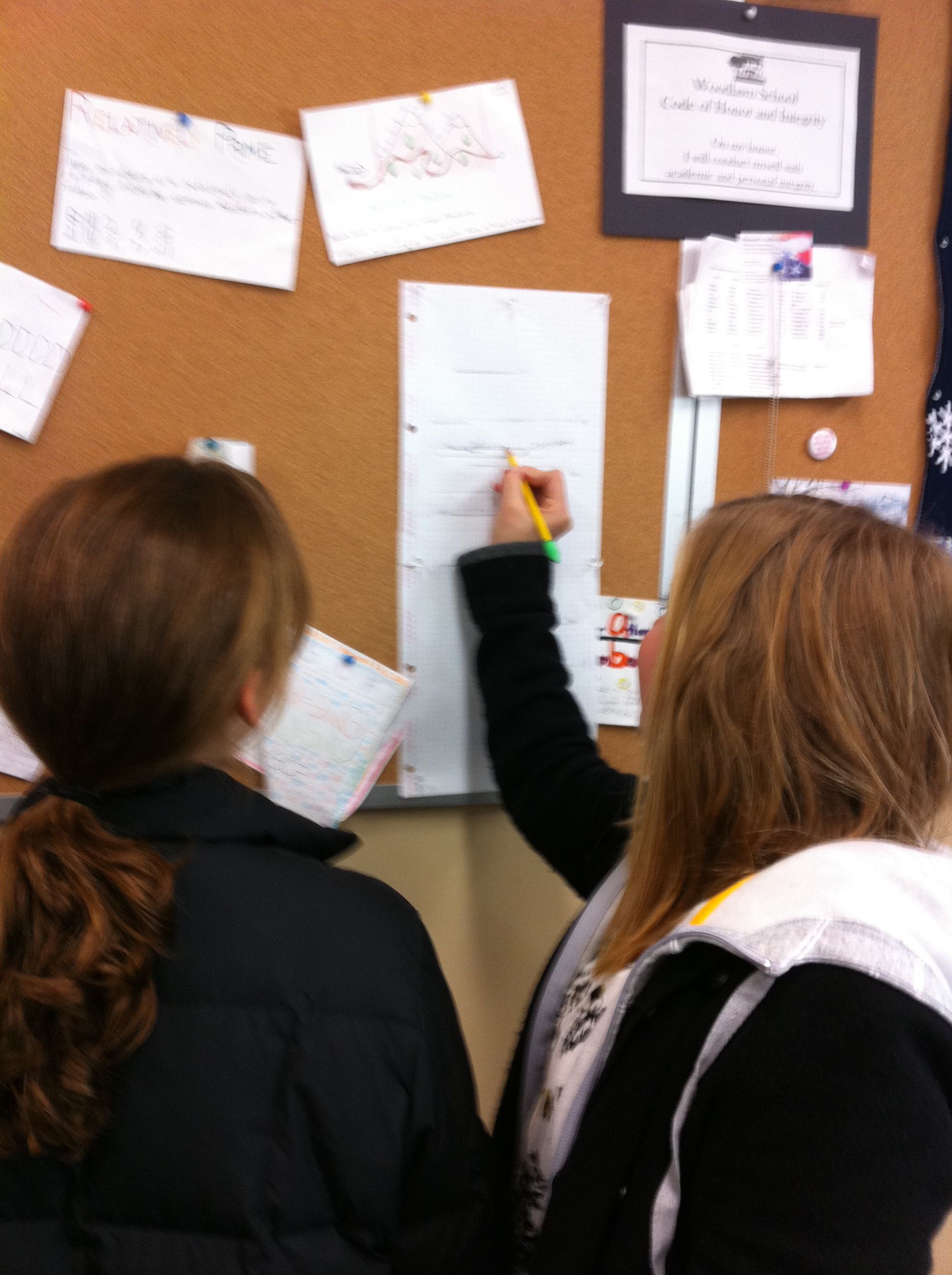
Part of the requirements were that the videos and games had to be interesting and fun.  They needed to view the videos and play the games.  I wanted the pages to be visually appealing as well so I offered a small amount of bonus points for including a picture or illustration that directly related to their concept.  I also had the students do “Peer Reviews” of each other’s pages to check the links, play the games, and give suggestions on how to make each others pages better.
This is a work in progress.  I plan on having other classes add to the help pages in the future.  As a project for 6th grade, I am going to assign them each one of the wiki help pages for them to explore.  I will then see if they feel that they can find additional (and maybe even better) resources to include on each page.  In this way, I hope to make the pages very rich in helpful resources.
Going forward, I would like to use these pages during after school help sessions, especially when I have multiple students that need help on several different concepts.  When this happens after school I am usually scrambling to help everyone.  I make up several problems for several students and then try to work with them all individually (at the same time).  The students are rarely at the same level.  Usually, everyone ends up waiting on me while I work with one student.  If all students could pull up the online interactive problems on the concept that they need to work on, they wouldn’t have to wait for me to make up a problem for them OR check to see if their answer is correct.  I would have more time to walk them through the problems and help them when they got “stuck”.  This would enable me spend after school help time circulating between students, helping each student with exactly what they needed help on, instead of spending time making up problems and giving out answers.

Linear Equations – Plotting and Predicting Measurements

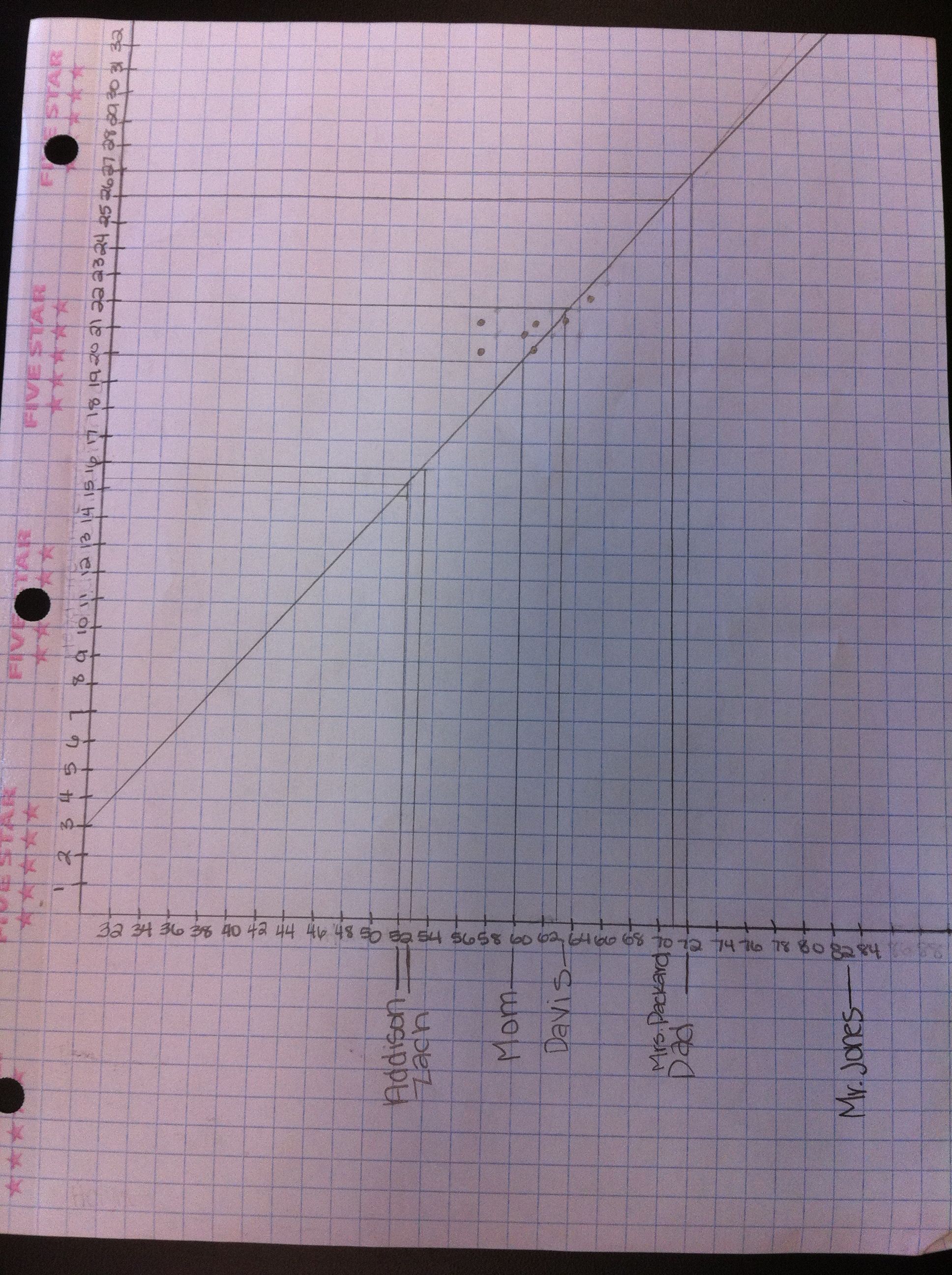
Given someone’s height, I wanted my students to see how well they could predict other measurements (like head circumference, arm span, foot length, and hand length).  They used measurement data that they had collected (their very own measurements), and then used scatter plots and lines of best fit for their predictions.

We are learning about graphing, including functions and linear equations.  They plotted ordered pairs the first day, and then learned about functions.  Now it was time to investigate linear equations.  This is an amazing part of mathematics not only because it is so interesting, but also because it is useful!
Plotting the Data

Plotting the Data

I have been told that students grow like weeds in middle school.  Since the beginning of the school year, my students have been recording their measurements every couple of months.  They measure their height, arm span, head circumference, foot length, and hand length in inches.  I had them fill out a Google Docs Survey which then organizes their data into a Google Docs Spreadsheet for us.

In class I had the students measure each other again so that recent measurement data could be included in our data set.  For homework, they were to enter their measurements onto the survey and measure each member of their families height in inches.  At the start of class I gave every student a piece of graph paper, a ruler, a worksheet, and a computer.  I then assigned each group a data set to analyze (head, arm span, foot, or hand).  We were making all predictions based on height (the x-axis), so everyone kept the height column and one more data set (the y-axis).  They duplicated the GDoc data sheet and deleted the columns of data that they were not assigned.

In order to determine the scale for the x-axis and y-axis, they calculated the range for their data sets.  This led to a great discussion about how this range would only make a good scale if we were just measuring middle school students.  But, we also wanted to be able to predict the measurements of people of other ages and sizes.  So, we expanded our range to find a more optimal scale that would cover all of the people that we had measured the night before.  We then discussed scale and counted the grid lines on our graph paper to determine how to number our axes.

After our axes were labeled and numbered it was time to plot points.  I let them plot for about 10-15 minutes, which was not near enough time for all of our data!  This needs to be a two day activity next year to get the most out of it.  I explained the line of best fit, and showed them a picture of a scatter plot with a line of best fit drawn on it (from Excel).  I had them draw what they thought was a line of best fit through their data points, and instructed them to draw their line across the entire paper so that they could make predictions for various heights.  **  When drawing their lines, be careful to instruct them not to cross the x-axis, as then their line will intersect the y-axis below 0.  People cannot have negative measurements! **
To show them how to make their predictions, I had them fill in the height data that they had collected the night before from members of their family.  They plotted their family members height on the x-axis and labeled them.  I illustrated how to go up to the line of best fit, then go over to the y-axis to predict their family member’s other measurement.  They recorded this and for homework tonight they will find the actual measurements of their family to compare.

Enter Mystery Guests!
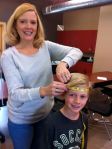
This was our favorite part!  I arranged for 4 – 6 mystery guests to come in at this time.  I wanted to measure people of varying heights and ages.  Our mystery guests included students (1st graders, a 3rd grader, a 7th grader, some seniors) and teachers from our school.  We measured their heights and then predicted their other measurements using the students lines of best fit.  While the students worked on their predictions, I had the mystery guests measure each other to find their actual measurements.  The guests then walked around the room to see how close the students predictions were.

The mystery guest portion was not only the most fun, but also the most informative piece of the lesson.  We were able to discuss why some measurements were more accurate than others.  They discovered that a big factor overall was that our data came only from middle school aged students.  Thus, our data wasn’t as accurate of a predictor for people that weren’t “middle school size”.  Also, they determined that some factors were much better predictors overall, such as arm span.

For homework, they were to go home and measure their family members actual measurements to see how close their predictions were.  I also had the students write a reflection on our class wiki.

We had so much fun with this activity but it was a real crunch to get it done in 50 minutes!  I will definitely do this again next year, but I will take two full class periods.  I would like to go deeper into numbering the axes, spend more time plotting the points, and have more time at the end to analyze the results.  Next year we will analyze our data, spend more time plotting points, and then work on our families measurements the first day.  Our mystery guests will open day two!  From reading the students reflections, it was clear that they really enjoyed this activity too!  Win-win!
Da Vinci’s Vitruvian Man – Ratios, Mean, Median, Mode & Frequency

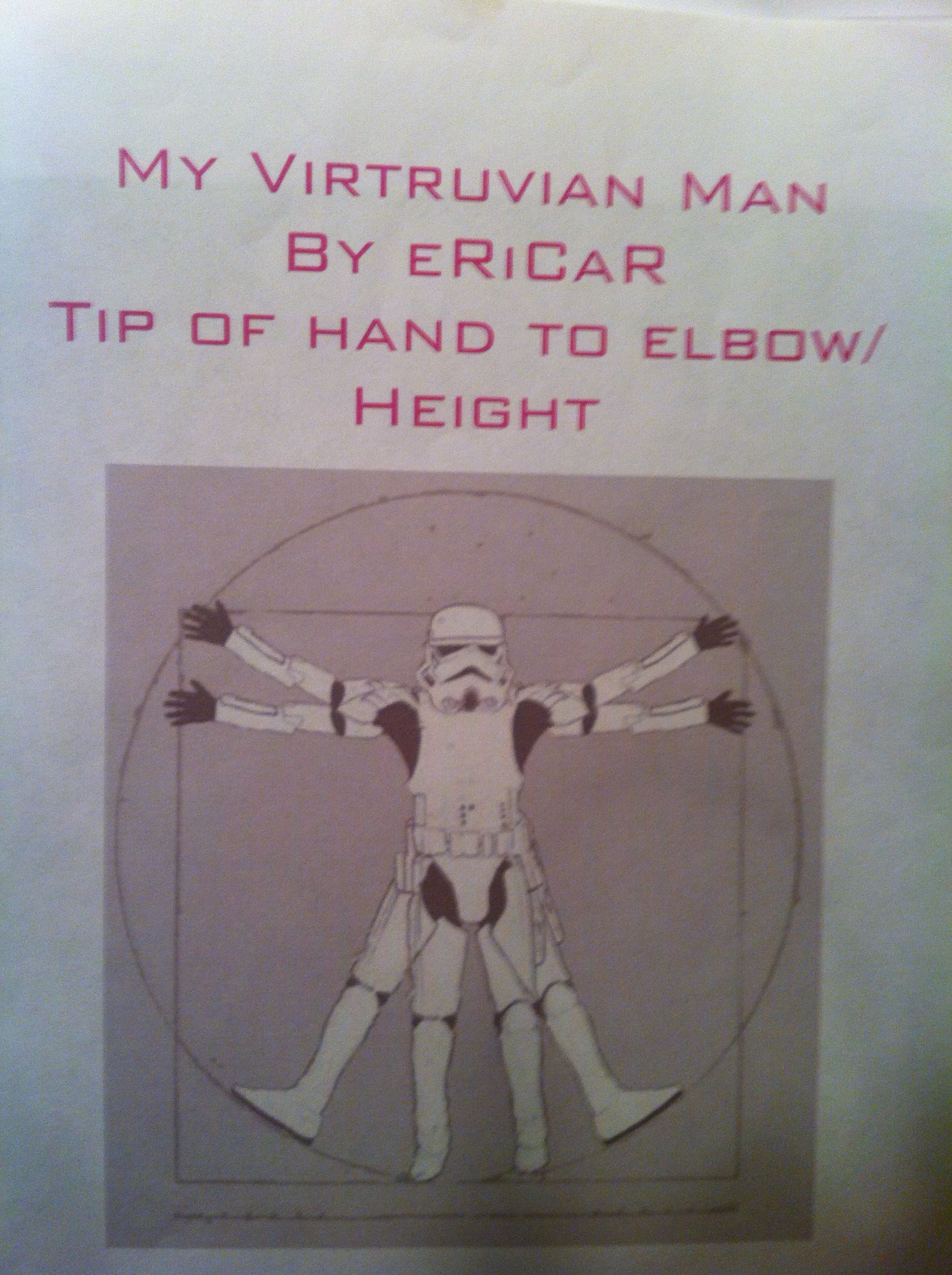
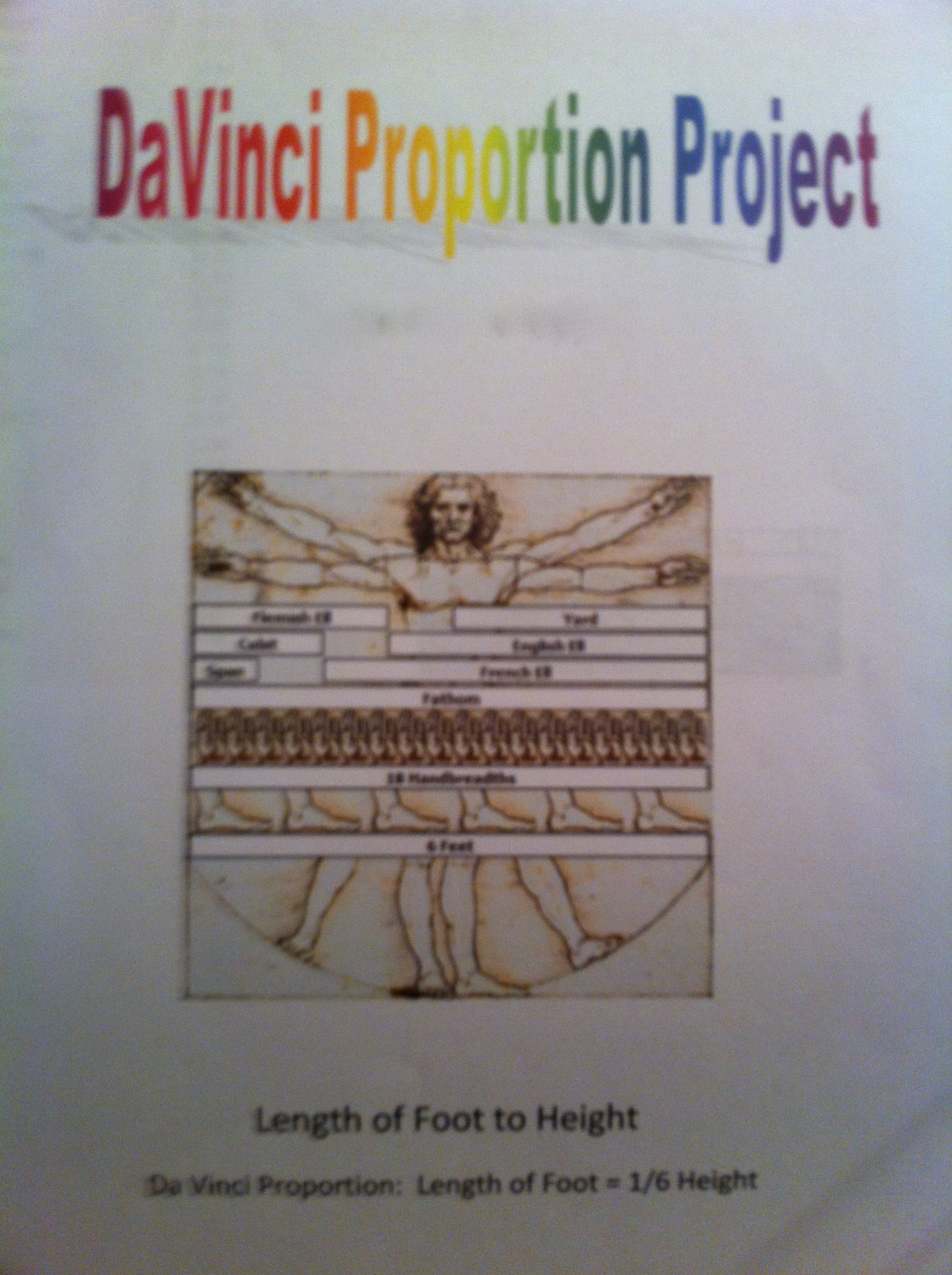
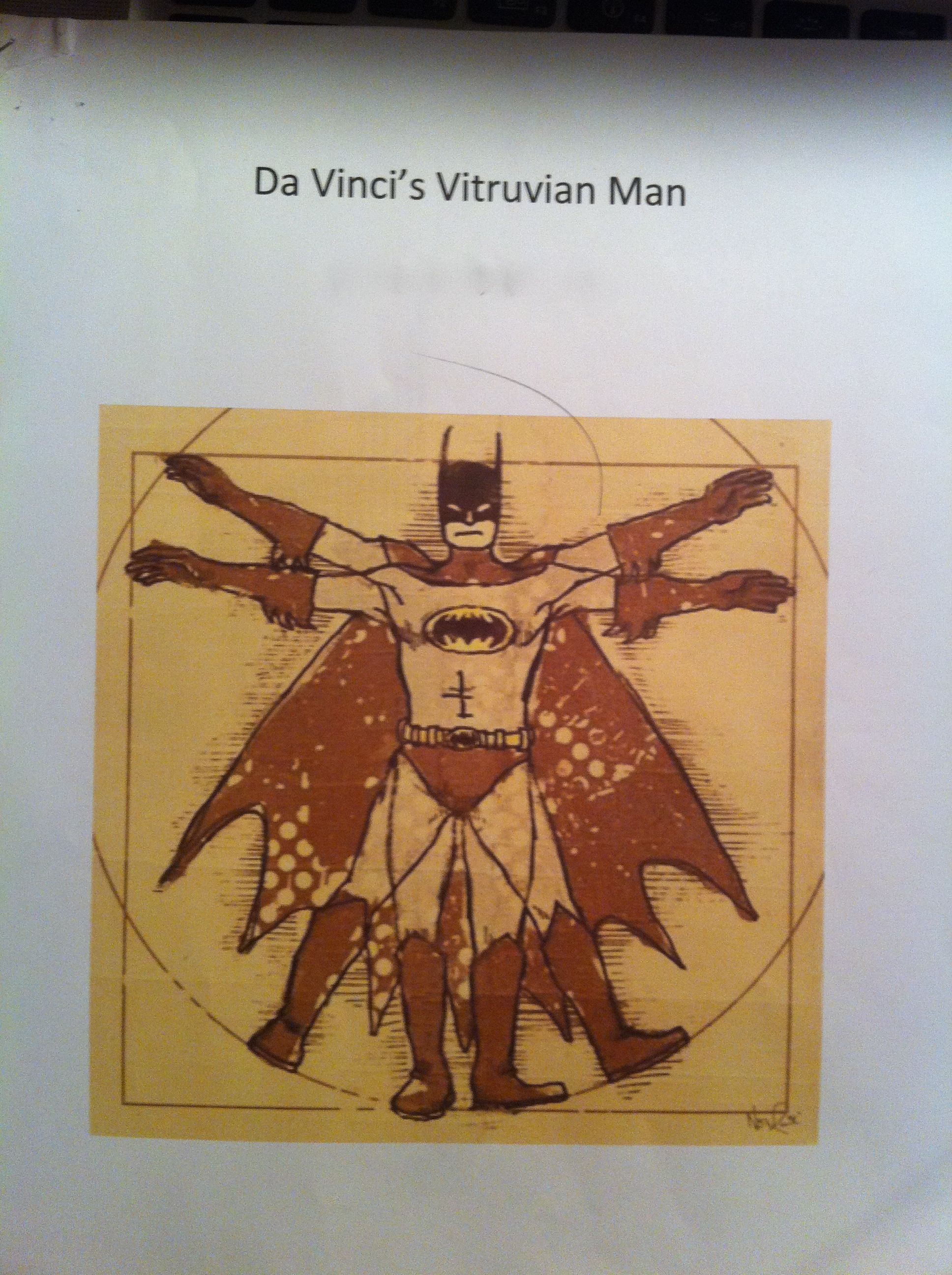
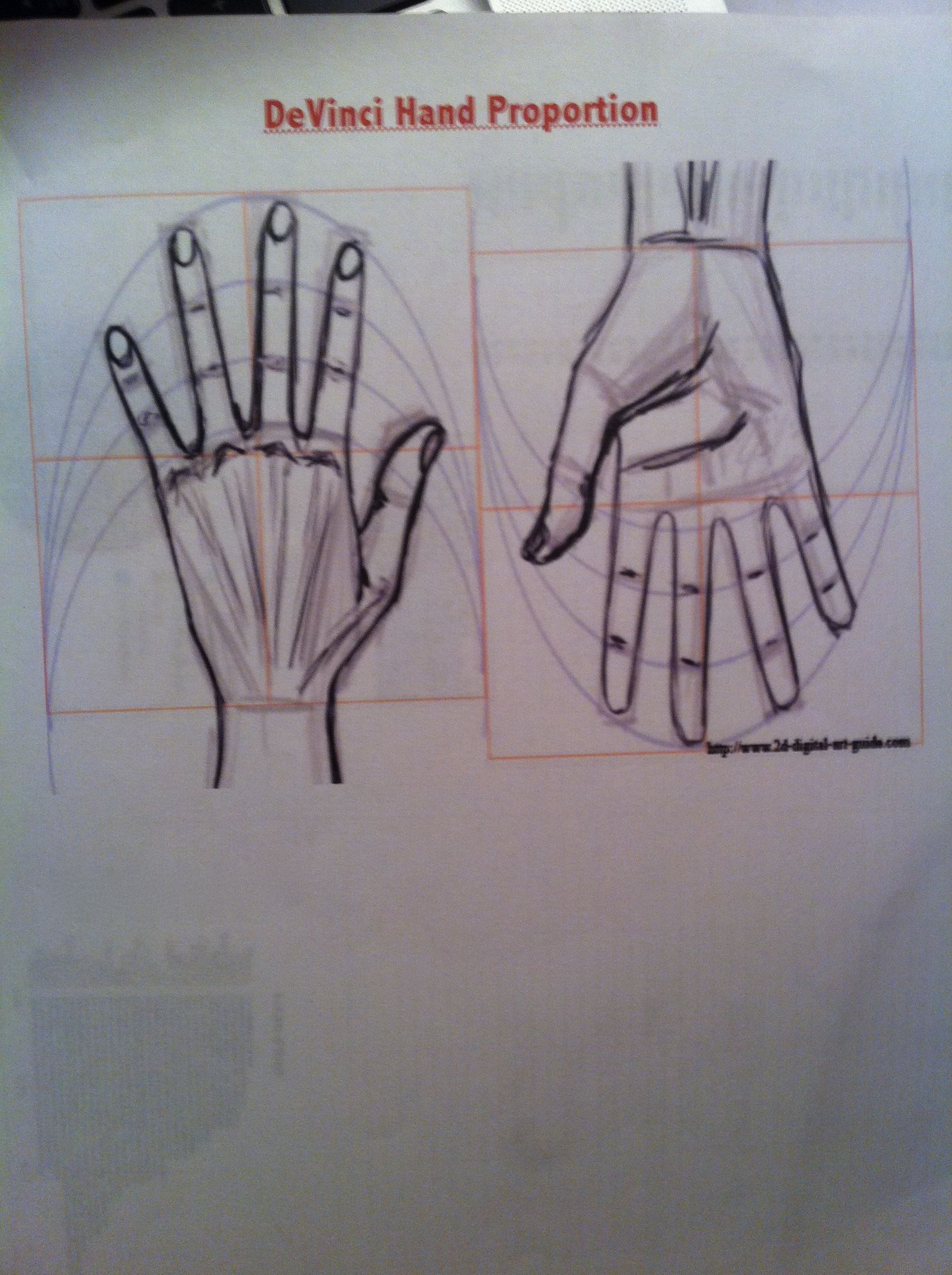
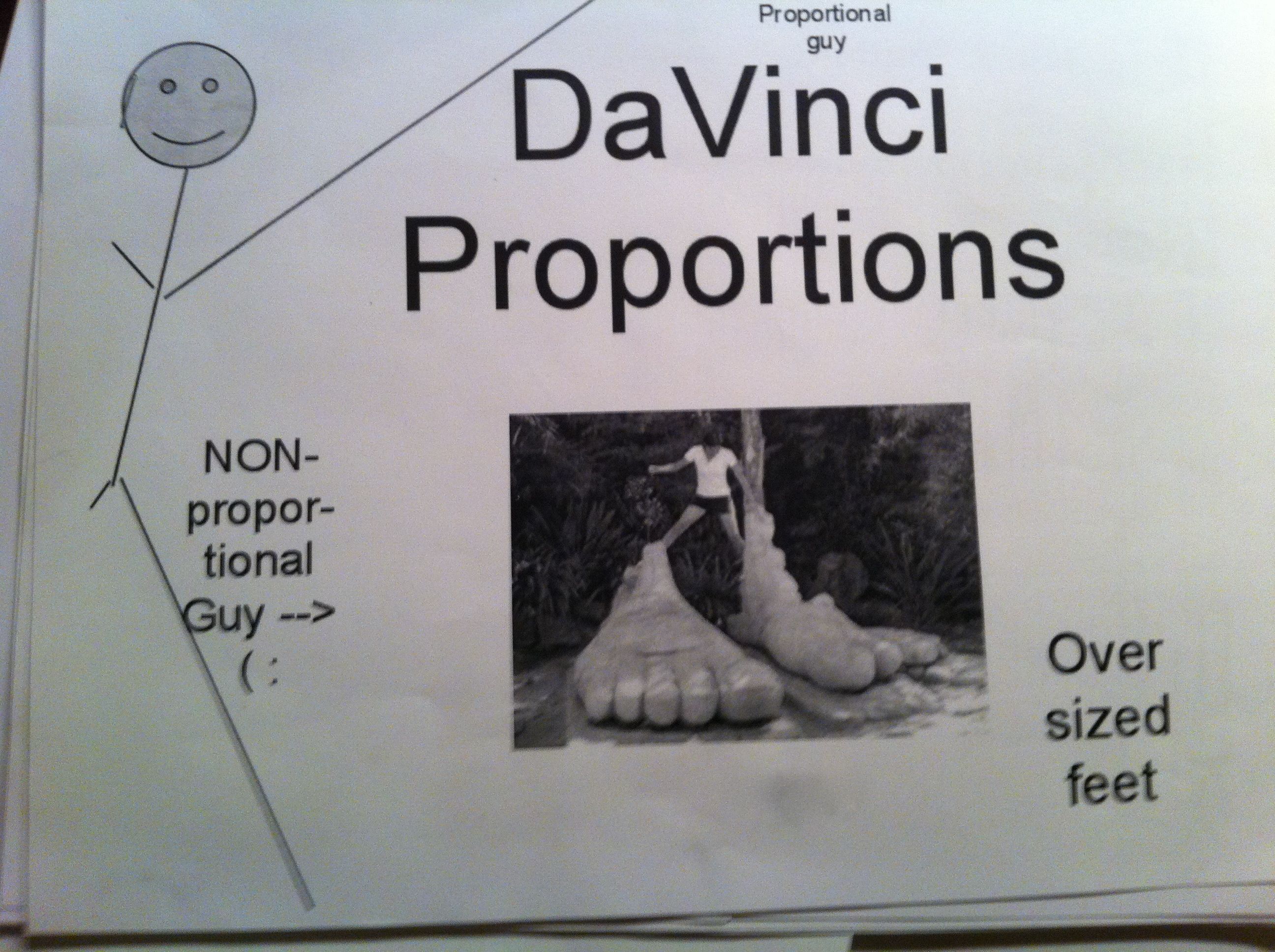
In our 6th grade curriculum students work on a large, interdisciplinary project on the Renaissance. After having so much fun in the Middle Ages, I couldn’t resist planning some fun with The Renaissance. Since we were studying ratios, I chose the ratios of Leonardo Da Vinci’s Vitruvian Man.  To make it more relevant and interesting for the students, I had them measure and analyze their own body measurements to compare to the Vitruvian Man.

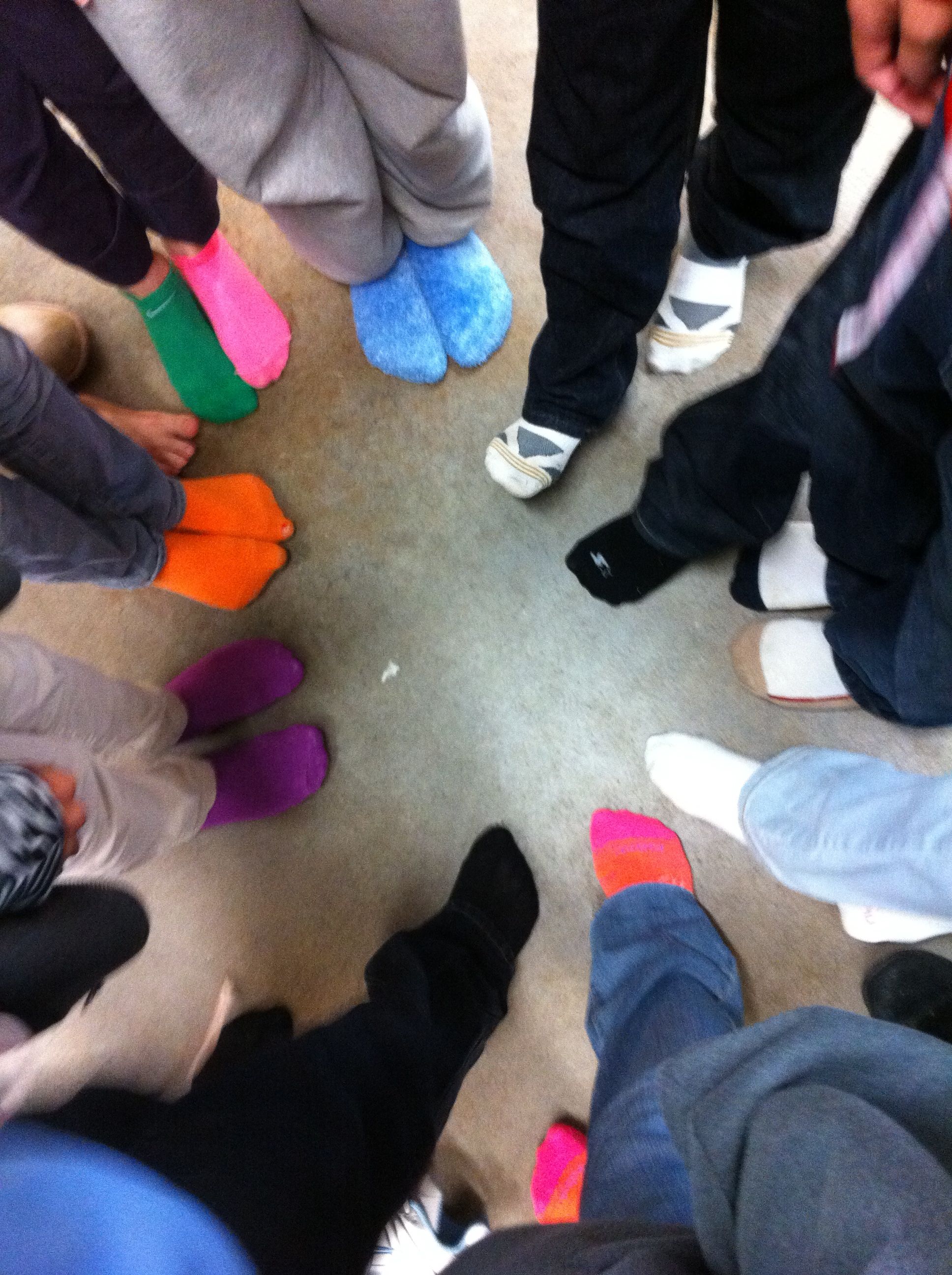
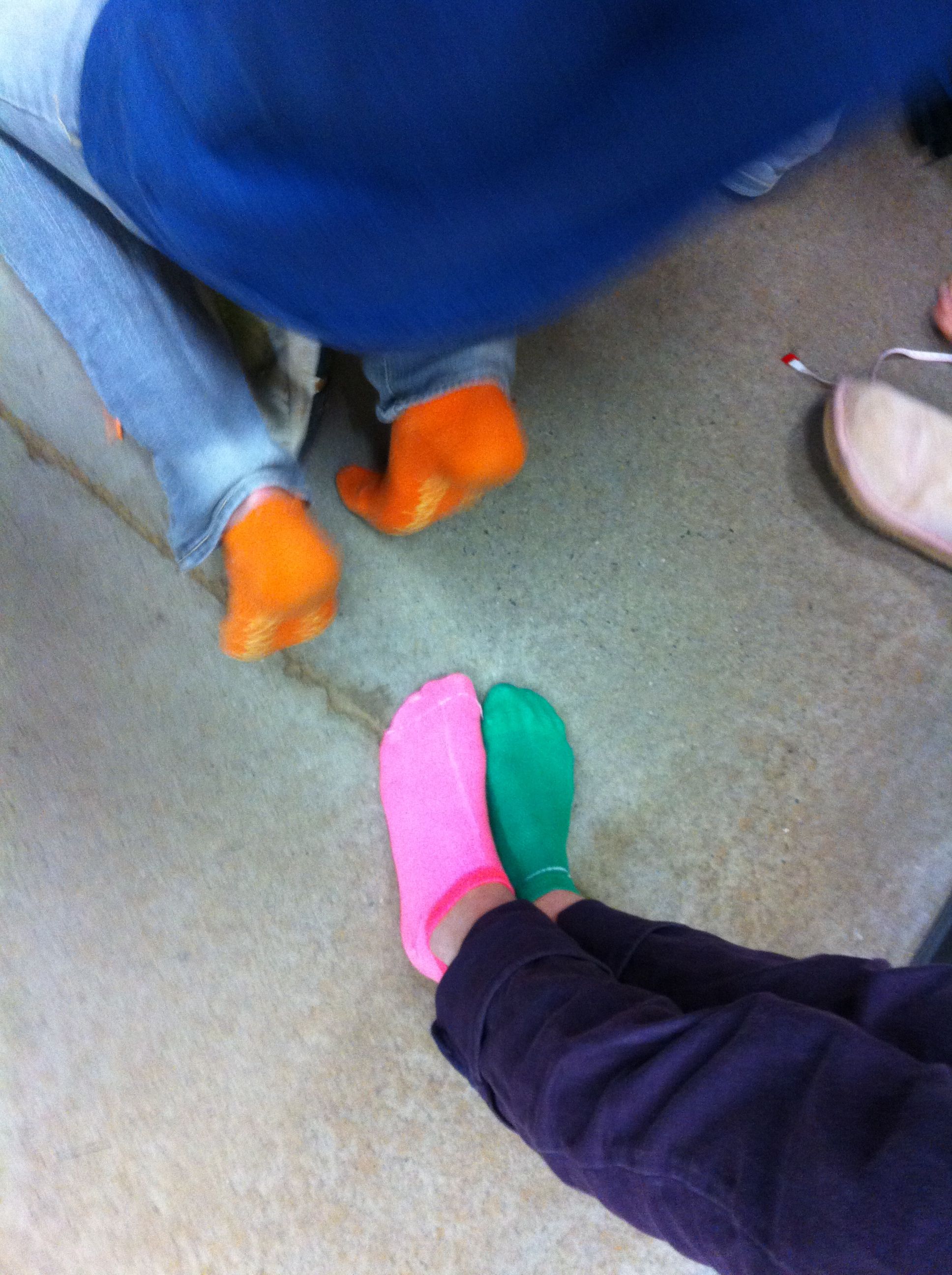
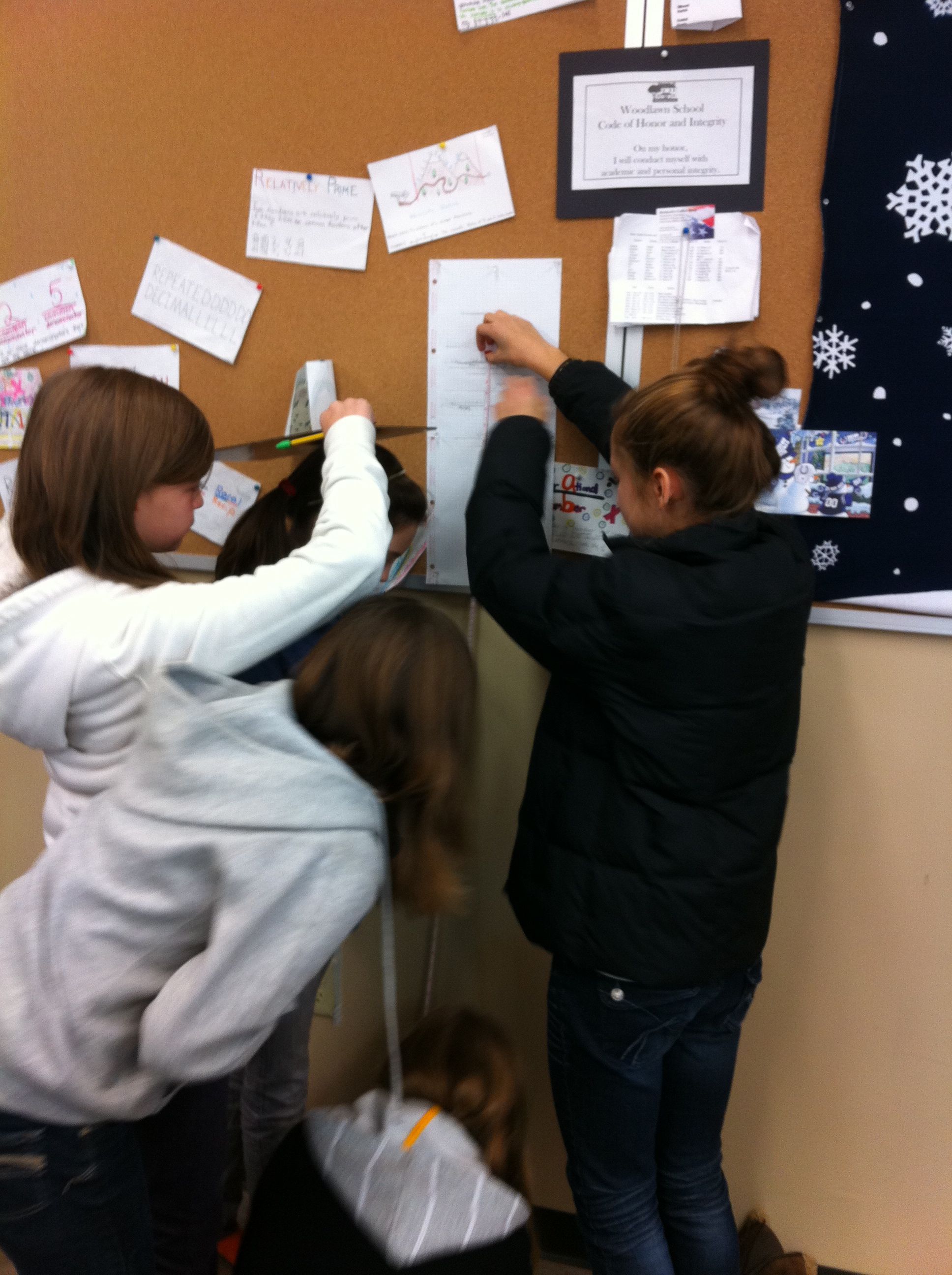
We talked about Da Vinci’s “ideal” body ratios in class.  I picked four of these ratios for my students to analyze, arm span to height, hand length to height, foot length to height, and fingertip to elbow to height.  We wanted their measurements to be as exact as possible, so they stood against the wall for their height and took off their shoes (cue great sock shots).  After measuring themselves, they entered their measurements, as ratios, into a Google spreadsheet.

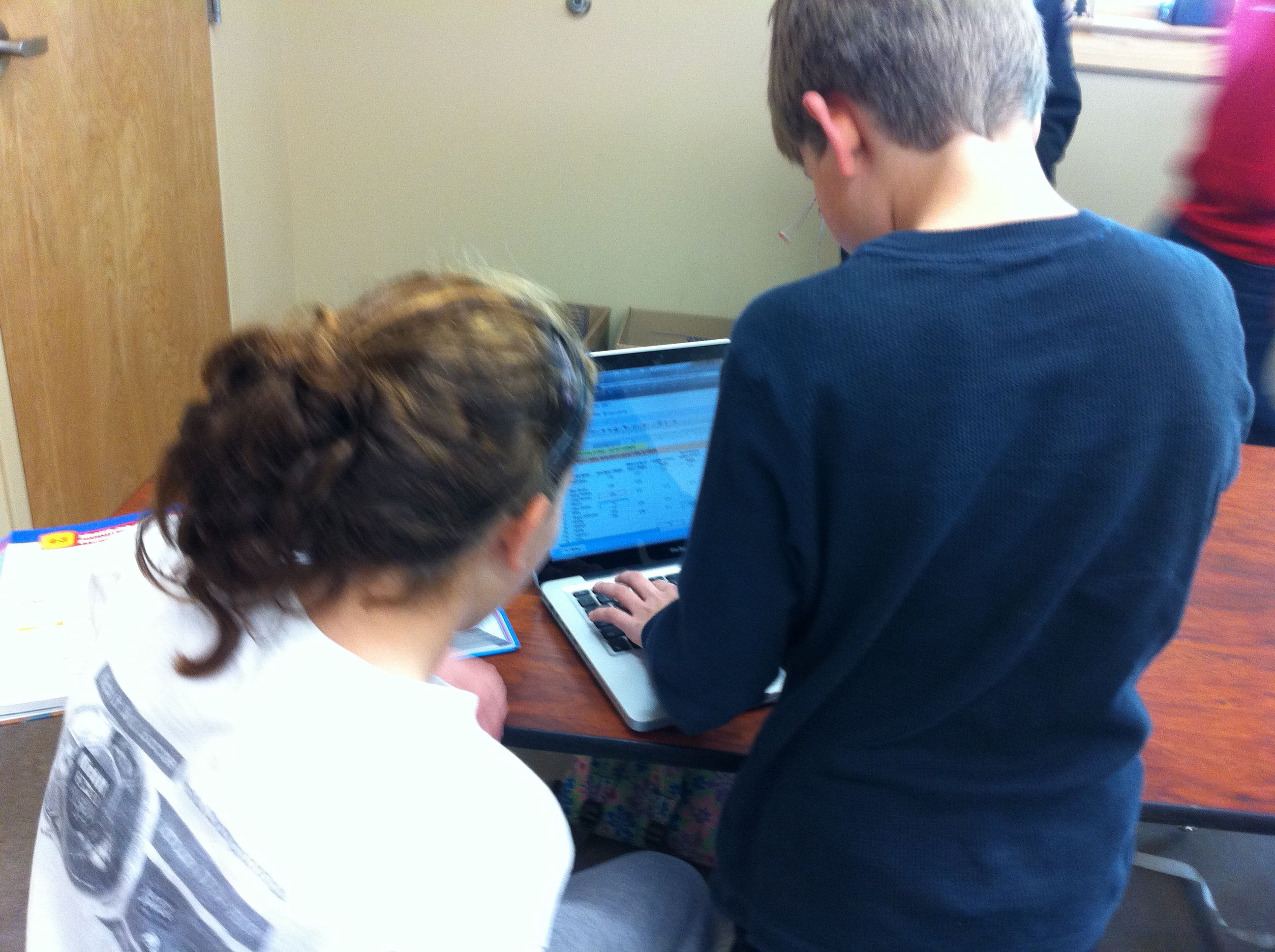
This was a wonderful extension of our previous Google spreadsheet work because I introduced my students to formulas.  I showed them how to calculate formulas using the formula bar and the equal sign.  Then, I showed them more advanced formulas using the formula menu.  I had them enter their ratios into each cell so that they could still see their ratios, but a decimal was calculated for the cell.  Best of all, they could still read their ratios by clicking on the cell and looking in the formula bar.

Mean, Median, and Mode

After all of the data was entered, I assigned each student a ratio to work with. Each student then duplicated the data sheet, deleted the columns of data that they were not working with, and sorted their column of data (sorting was a new skill as well).  Sorting the data made the median and mode easier to calculate and their subsequent bar graphs more appealing to read.  For the mean I had them use the AVERAGE( ) formula from the formula bar.  To represent this data, they made a bar chart with each student and the mean, median, and mode.

Frequency Table
After calculating the data, we talked about the Da Vinci proportion for their particular body parts.  They then entered that number into a frequency table that I had pre-typed onto the data sheet.  They populated their frequency table with the number of students in our class that were under proportional, exactly proportional, and over proportional according to the Vitruvian Man.  To illustrate the frequency table they created pie charts.

Google Spreadsheet Data Sheet

After their charts were complete they uploaded them to our Da Vinci Vitruvian Page on the wiki and explained their findings in the comments section.

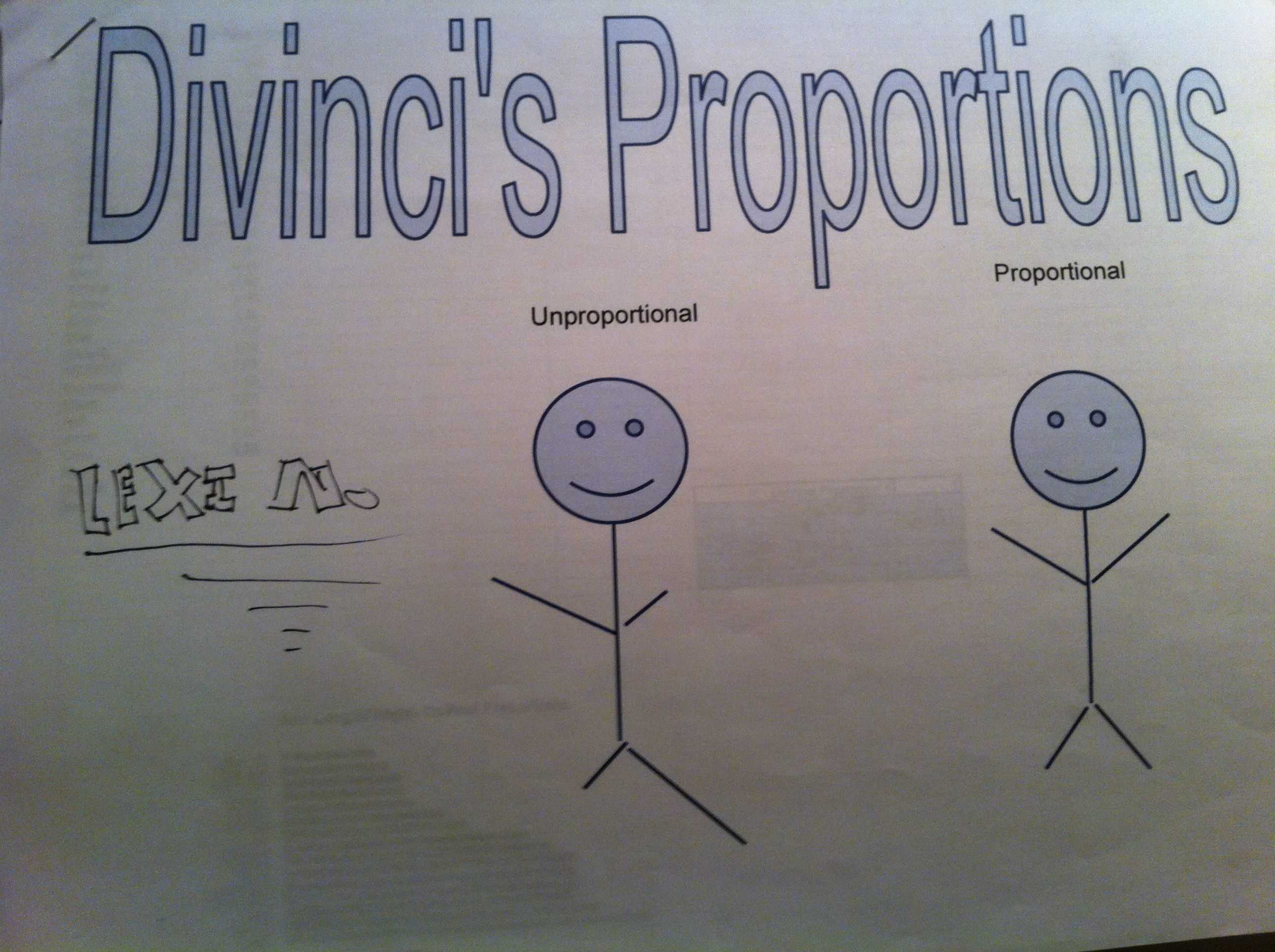
To make this a grade-able project I had them print out their data sheet and charts as well as make a cover sheet.  I showed them how to use Google word processing and Google drawing for the cover sheet (but that was optional).  On the day they were due, the students presented their projects to the class.  We discussed their findings as a class and talked about which measure of central tendency best represented their data.  They summarized that they weren’t very proportional (according to Da Vinci) because they weren’t finished growing yet!  But, they were most fascinated with interesting facts that they fond out about themselves (as in the fact that the person with the smallest hands did not have the smallest hands proportional to their height).  It was great fun!

Homework Hotline with Google Docs

I developed a “Homework Hotline” with a Google Docs spreadsheet to answer student questions in the evening.  The students can open it up at any time after school and type in their name, the time, which homework question they need help with, and any other questions they have.  I then get on from 9:00 – 9:15 pm to say “Hi!” and answer their questions.  Often, other students will get before 9pm and answer each other’s questions before I even get there (I love that)!

We use the spreadsheet but also the chat box for questions and help.   I have a separate page for each subject that I teach.  When it started, I would comment on the row below the question and hi-light it.  Now, I type into my own designated (purple-colored) column.  The new column is much easier for me and much easier for the students to follow.

I have found that this is a great way to answer student questions in the evening.  When I first started the “Hotline”,  students were on every night chatting with me.  It has calmed down quite a bit, but is still a very useful tool for evening questions.  Since it is much quieter now, I no longer go on every night at 9pm.  But, I usually check it once an evening to see if anyone has been on or has a question.  I now instruct the students to send me an email if they have questions and then I will get on the hotline that night to help them.

The two biggest drawbacks to the hotline are that writing equations and fractions in gdocs is awkward, and many kids are in bed by 9pm.  But, as I have kids myself, it is difficult for me to get on before mine are in bed too!  If I have an email request I will try to get on about 8:30pm.  Right now, I am averaging about 2 “Hotline Nights” a week.  I love being able to help out my students this way!

Here is a Sample Google Documents Homework Hotline (Blank).

Hotline

I am also playing with Scribblar and will try that with my students in the next couple of weeks.  Thanks so much to Twitter and @jrykse @druinok for “playing” Scribblar with me!  Great Tweeps are always there to help!  With my current workload I have missed out on Twitter lately and have really been missing out!